There are no more items in your cart


In Stock - Ready to Ship
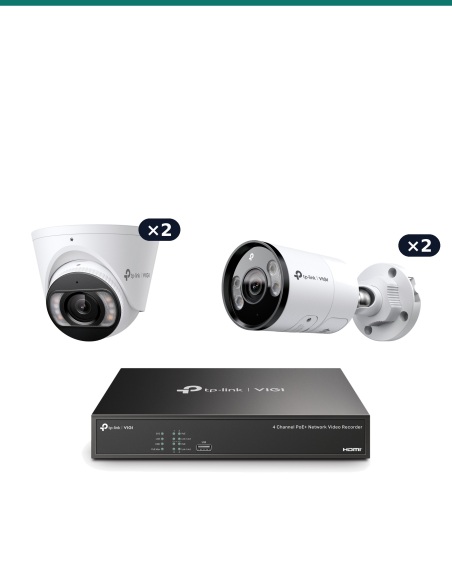
TP-Link Security Cameras


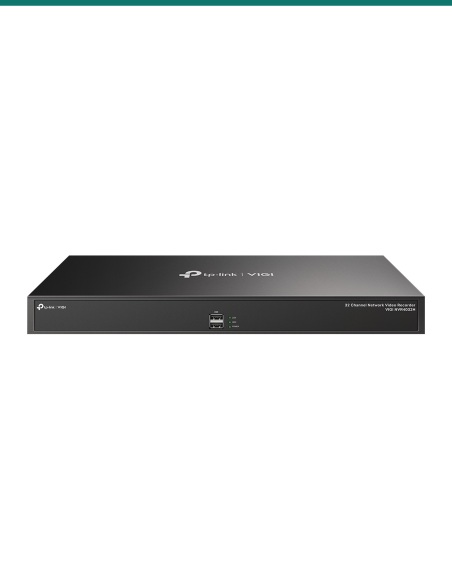
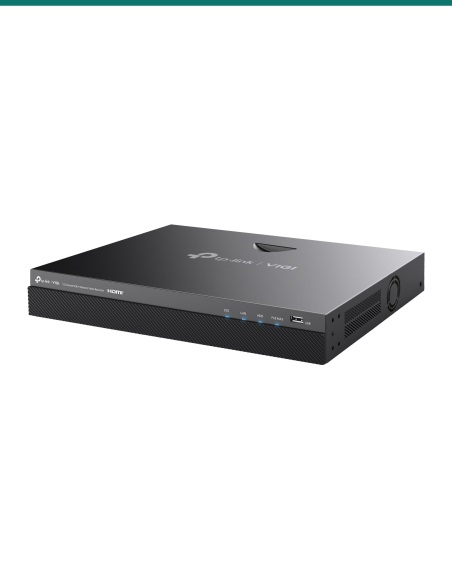
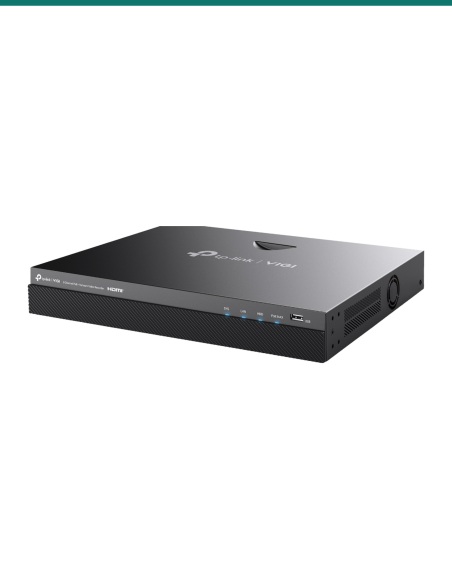
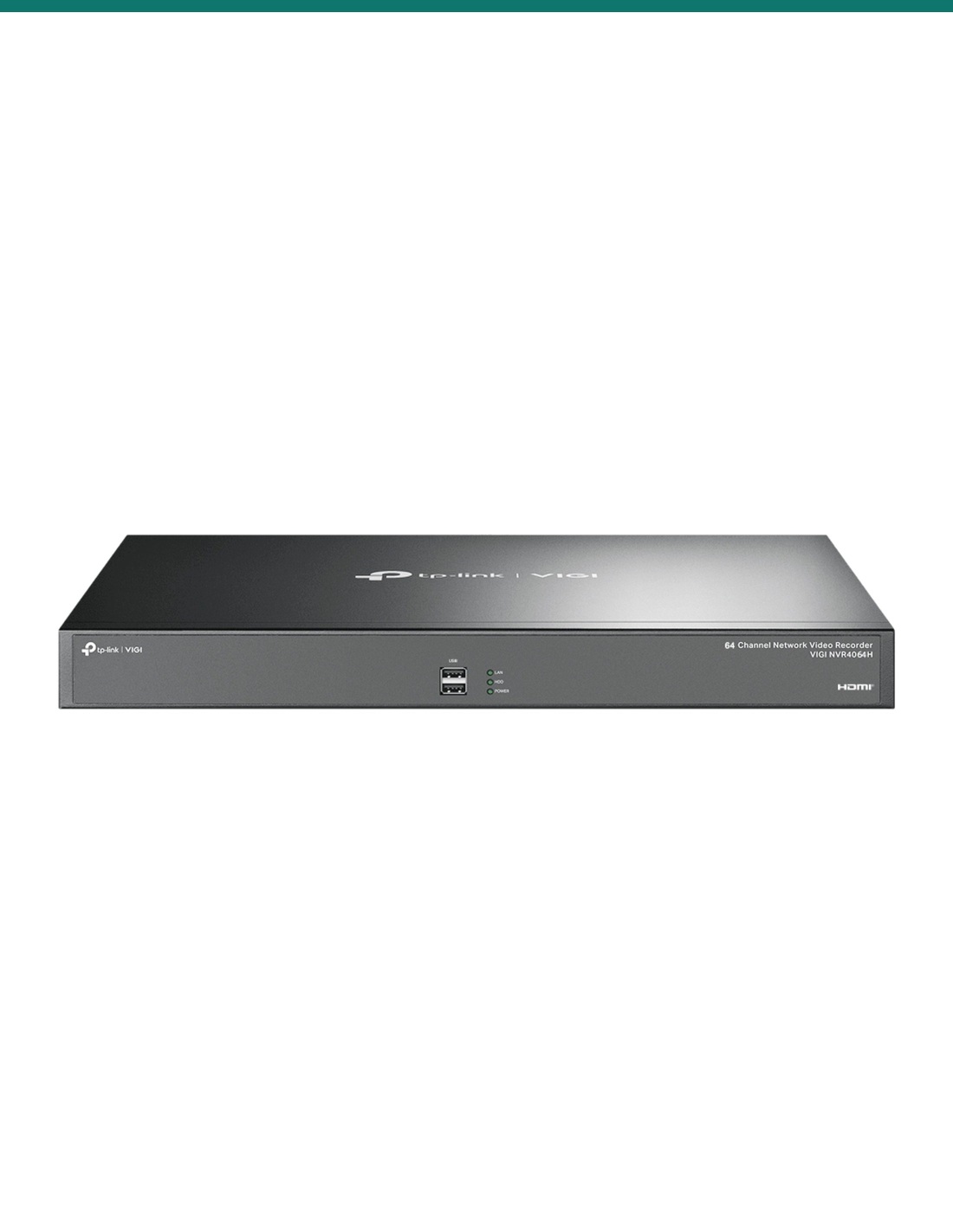
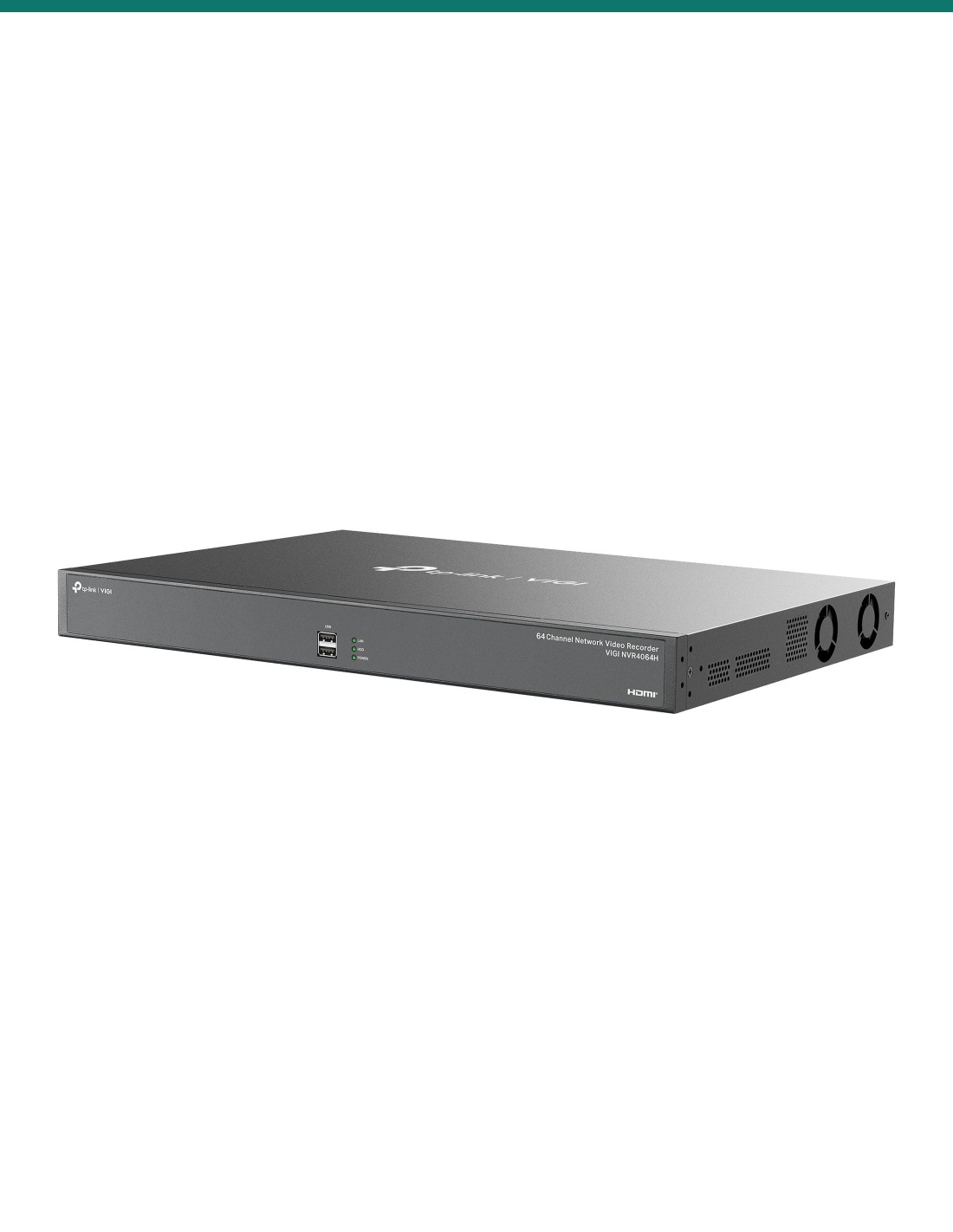
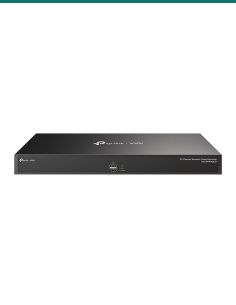
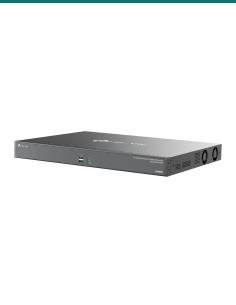
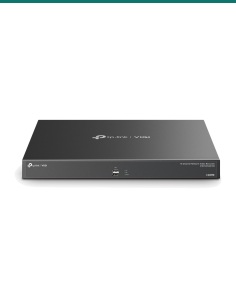
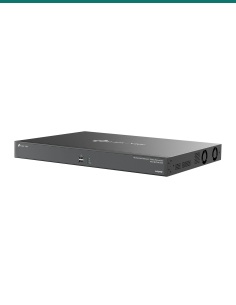
TP-Link VIGI NVR4064H: a 64-channel rack-width recorder with four drive bays and two HDMI outputs. It has no PoE ports, so pair it with PoE switches. Choose the drive size in the options.
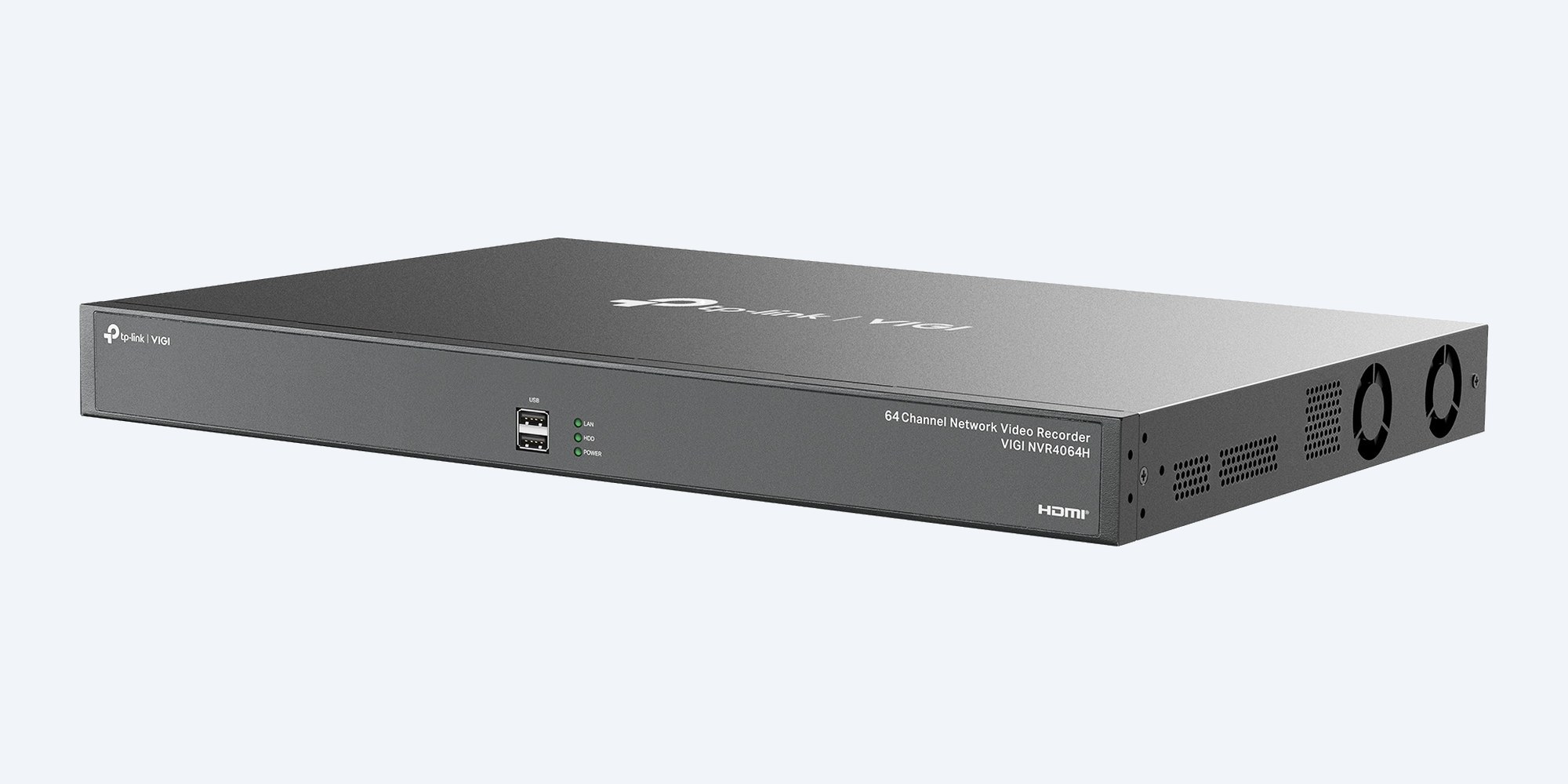
This is the VIGI NVR4064H: a 440 mm wide, 44 mm high recorder for up to sixty-four IP cameras, with four drive bays of up to 16TB each and two HDMI outputs. It has no PoE ports, so the cameras are powered by PoE switches.
In one sentence: the VIGI-NVR4064H is a TP-Link VIGI 64-channel network video recorder without PoE, in a 440 × 330 × 44 mm rack-width chassis, recording cameras up to 8MP at 260 Mbps (320 Mbps in extended mode), with four SATA bays of up to 16TB each.
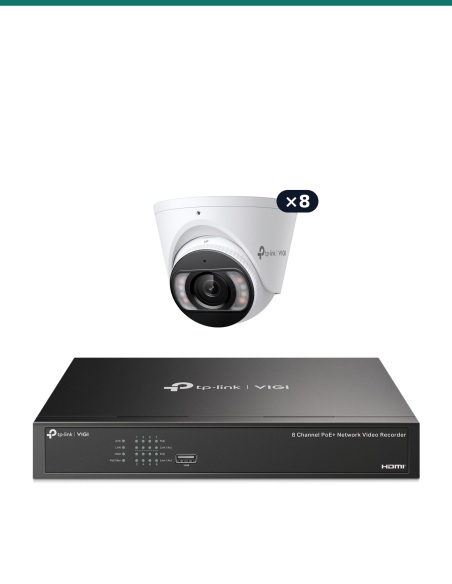
No PoE ports. You need PoE switches for the cameras.
This recorder has no PoE ports and no camera ports of its own. Cameras plug into PoE switches, and the switches connect to the recorder's network ports. It ships without hard drives: choose the drive size in the options above, or fit your own.
The NVR4064H takes sixty-four cameras up to 8MP over the network: 260 Mbps in by default, or 320 Mbps in extended bandwidth mode. Four bays hold up to 64TB, with eSATA for an external drive. Live view splits up to 64 cameras on the 4K HDMI output plus a second HDMI or VGA screen, and the back has two Gigabit network ports, sixteen alarm inputs, four alarm outputs and a mains inlet.
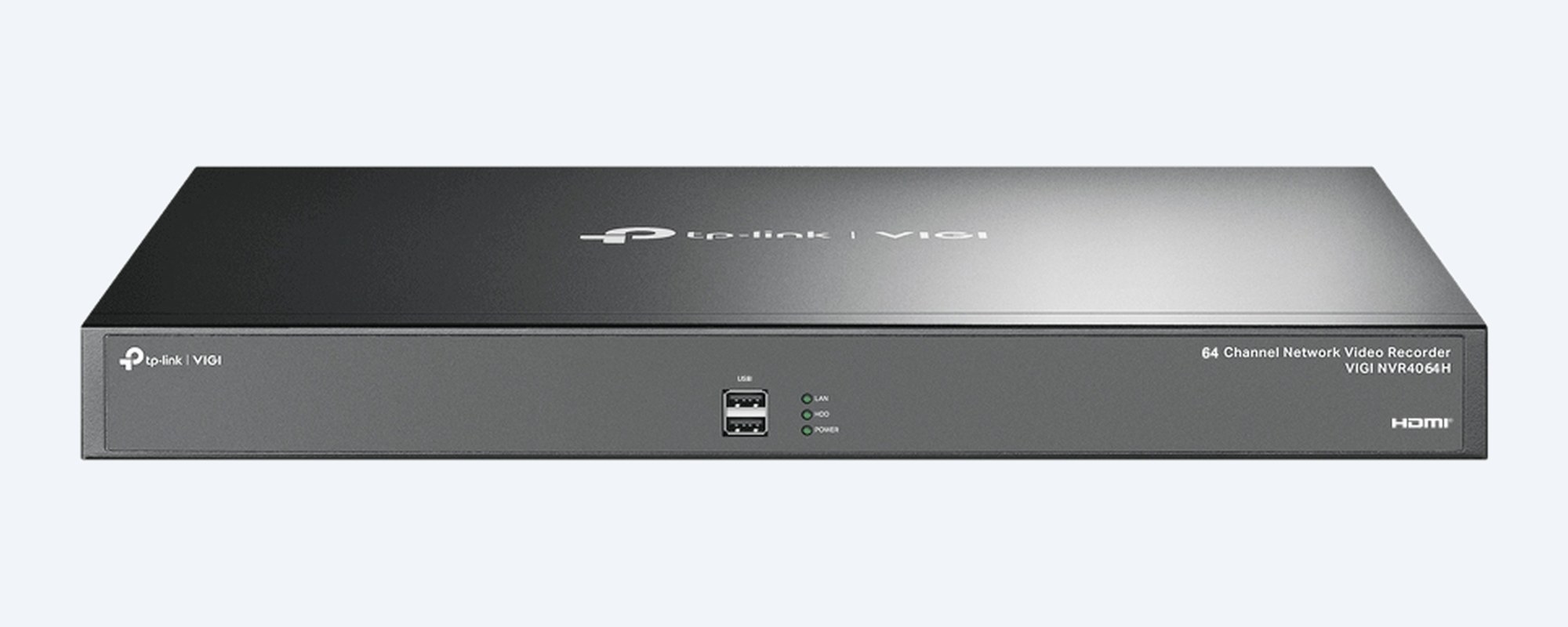
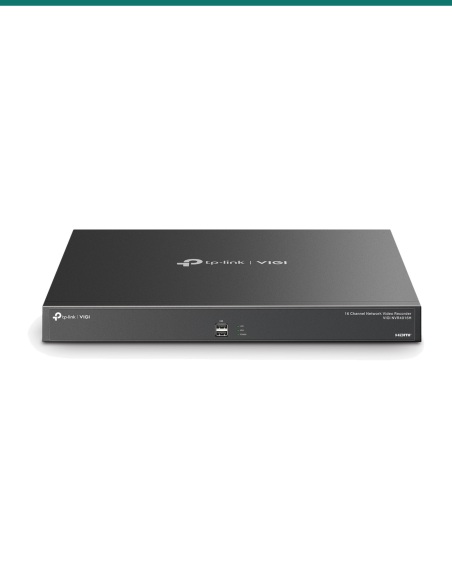
Front
Two USB 2.0 ports on the front for the mouse, a keyboard or a USB drive for backups, plus status lights. 440 × 330 × 44 mm.
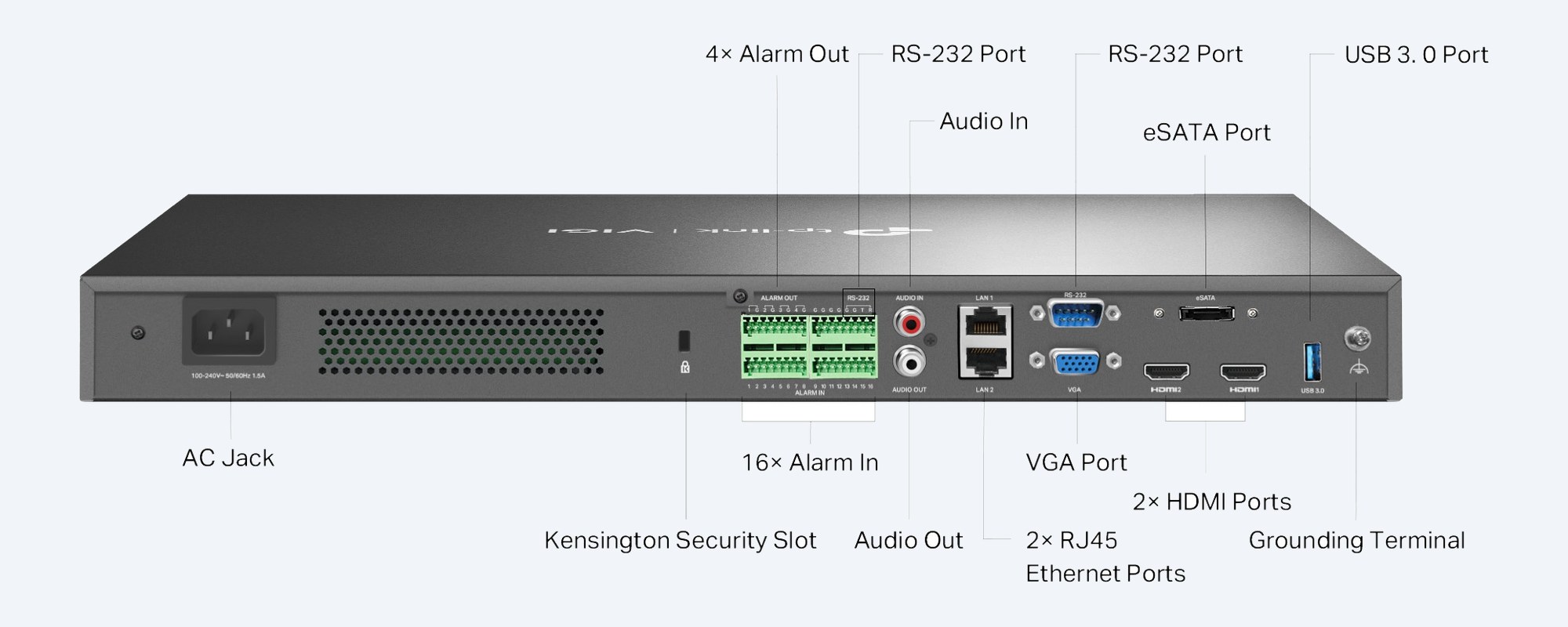
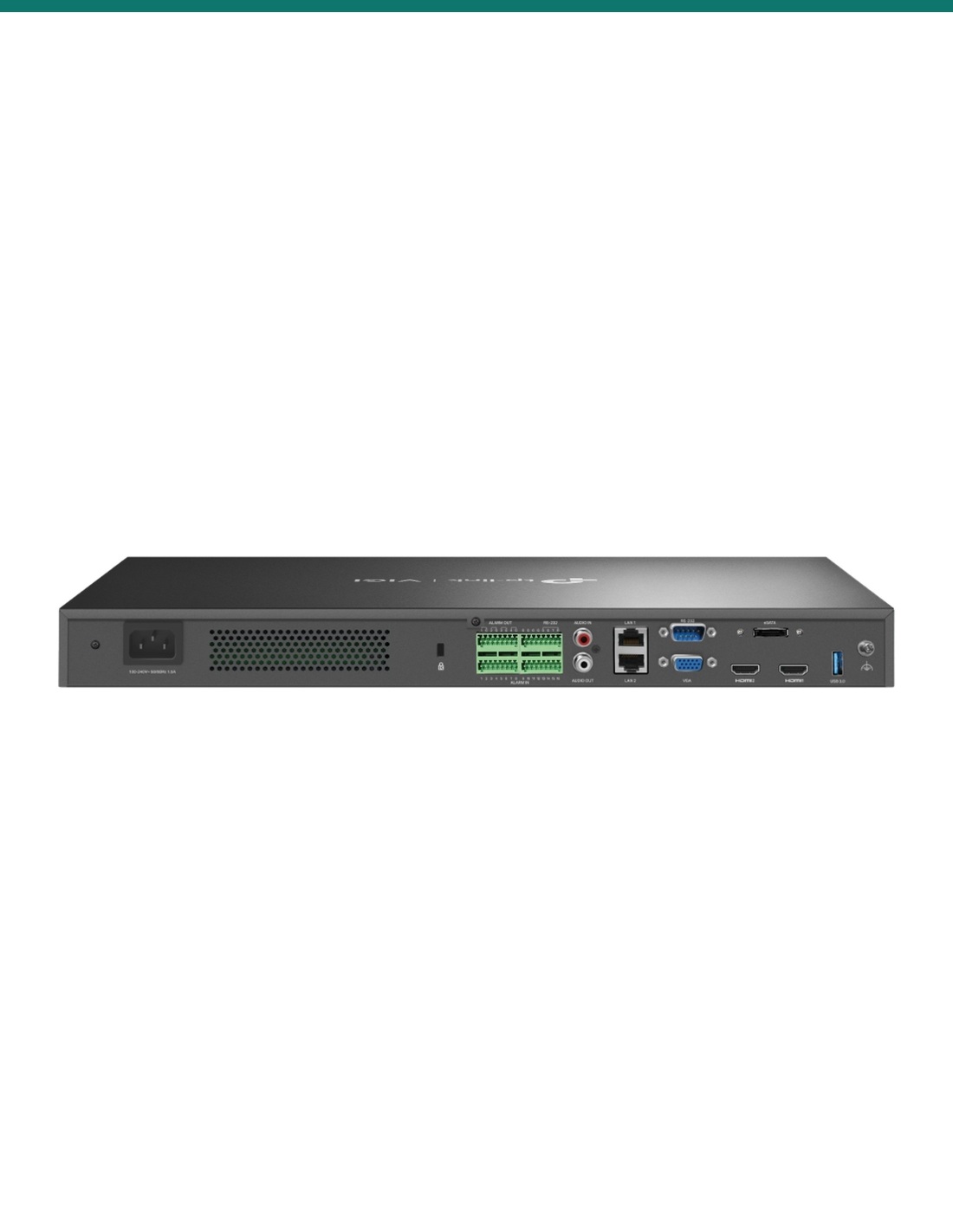
Rear
Two Gigabit RJ45 ports, two HDMI, one VGA, eSATA and USB 3.0. Sixteen alarm inputs and four alarm outputs on terminal blocks, RS-232, RCA audio in and out, a grounding terminal and a 100–240 VAC inlet.
How it goes in
01
440 mm wide and 44 mm high, with brackets in the box. On rack angle rails TP-Link recommends a tray (not included) because of the weight. 100–240 VAC.
02
Four SATA bays take drives of up to 16TB each. A drive chosen in the options comes with the recorder. Power off before fitting a drive.
03
Each camera plugs into a PoE switch port. Sixty-four cameras need four 16-port PoE switches or larger switches, linked to the recorder.
04
Connect a screen and the mouse, add the cameras, set the bandwidth mode, then link the recorder to your router and the VIGI app.
At a glance
Show specs
Model
VIGI NVR4064H
Channels
64 IP
PoE
None, use PoE switches
Recording
Up to 8MP per camera
Bandwidth in
260 Mbps; 320 Mbps in extended bandwidth mode
Bandwidth out
180 Mbps; 320 Mbps in extended bandwidth mode
Compression
H.265+ / H.265 / H.264+ / H.264; audio G.711A, G.711U, G.726
Drives
4 × SATA, up to 16TB each; 1 × eSATA
Live view
1/4/6/8/9/16/25/32/36/49/64 split
Playback
16 channels at once, fewer if the total passes 32MP
Decoding at 30 fps
4 ch @ 8MP, 6 ch @ 5MP or 8 ch @ 4MP
Decoding at 25 fps
16 ch @ 2MP, 32 ch @ 720p or 64 ch @ D1
Display
HDMI1 up to 3840 × 2160 at 30 Hz; HDMI2 and VGA up to 1920 × 1080. HDMI2 and VGA can't run together
Network
2 × 10/100/1000 Mbps LAN
USB
2 front USB 2.0, 1 rear USB 3.0
Audio
1 RCA input, 1 RCA output
Alarm
16 inputs, 4 outputs
Serial
RS-232
Smart alarms (from the camera)
Motion, tampering, scene change, line crossing, intrusion, region entry and exit, loitering, object left or removed, human, vehicle, abnormal sound
Interoperability
ONVIF Profile S and T, CGI
Remote viewing
VIGI app (Android, iOS), VIGI Security Manager, Chrome, Firefox, Edge
Power
100–240 VAC, 50–60 Hz, 1.5 A; 6.95 W without drives, 48.38 W with drives
Operating range
−10 °C to 55 °C, 10–90% RH non-condensing
Chassis
440 × 330 × 44 mm, 4.0 kg
Warranty
3 years, TP-Link Australia
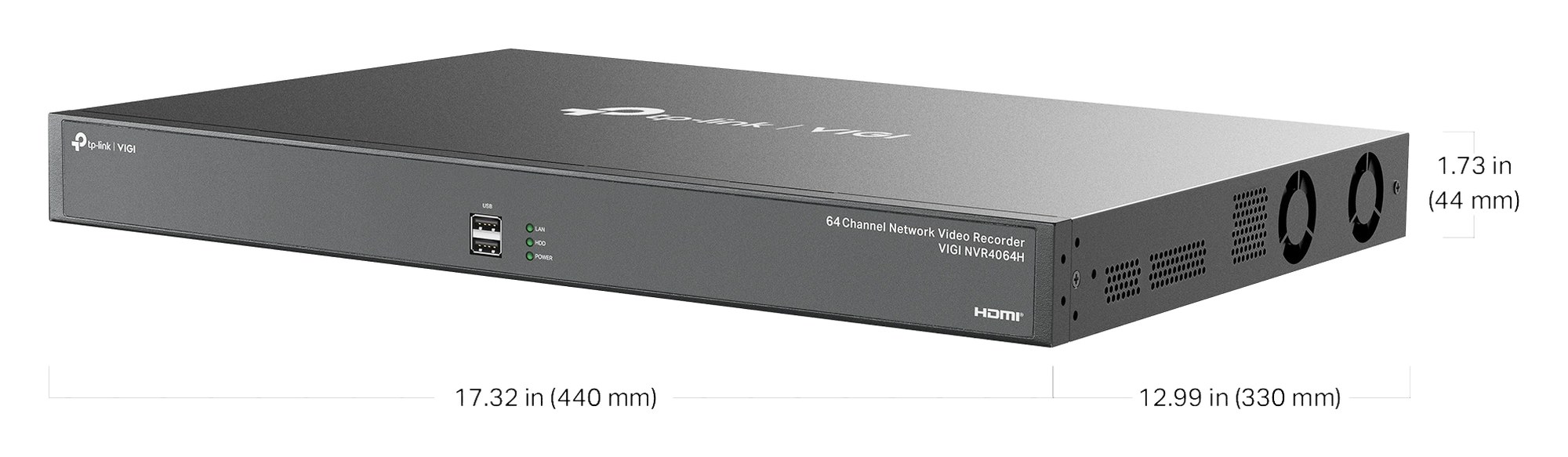
440 × 330 × 44 mm, 4.0 kg. From TP-Link's product drawing.
Pair it with
Switching
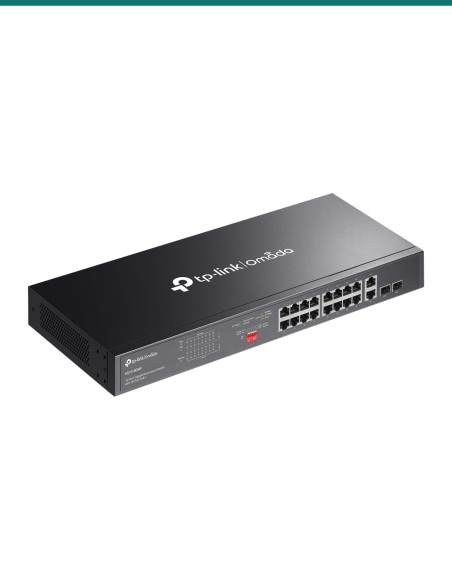
The recorder has no PoE ports. Four 16-port PoE+ switches such as the TP-Link Omada DS1018GMP cover sixty-four cameras. Check the power budget covers your cameras.
Storage
Choose the drive size in the options above, or fit your own. Each of the four bays takes up to 16TB.
Cameras
TP-Link VIGI and InSight cameras such as the InSight S485, S385 and S285. ONVIF cameras from other brands also record.
Security
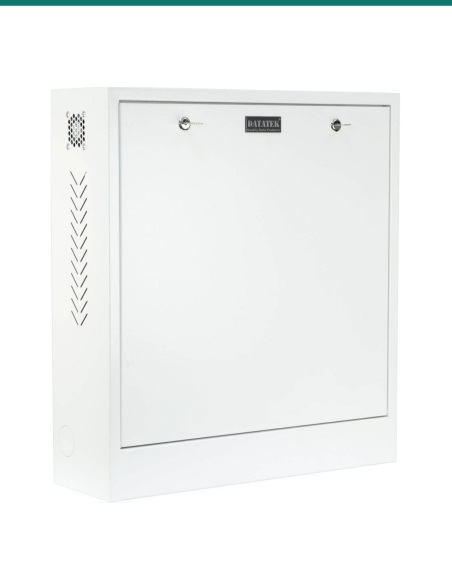
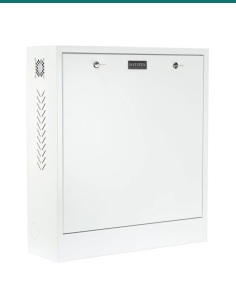
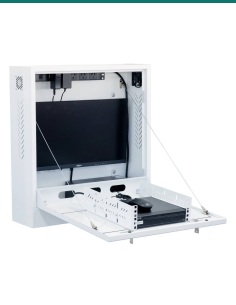
Keep the recorder out of reach, for example in the 24SECCAB security cabinet, and on a UPS so recording carries on through short power cuts.
Where it is used
Docks, aisles, yards and gatehouse on one recorder.
Several buildings, grounds and car parks back to one comms room.
Entries, malls, loading docks and car parks.
Basements, lobbies, lifts and common areas across a whole complex.
Production floors, stores and perimeter fences.
Gaming rooms, bars, entries and car parks.
| VIGI NVR4064H (this recorder) | VIGI NVR4032H | |
|---|---|---|
| Channels | 64 IP | 32 IP |
| Bandwidth in | 260 Mbps, 320 Mbps in extended mode | 320 Mbps |
| Drive bays | 4 × up to 16TB | 4 × up to 16TB |
| HDMI outputs | 2 (one 4K) | 1 (4K) |
| eSATA | Yes | No |
| Live view split | Up to 64 | Up to 36 |
| Decoding at 25 fps | 16 ch @ 2MP, 32 ch @ 720p, 64 ch @ D1 | 16 ch @ 2MP, 32 ch @ 720p |
| PoE ports | None | None |
Each model has its own TP-Link datasheet; both columns come from those datasheets. Both are the same 440 × 330 × 44 mm chassis and need PoE switches for the cameras.
No. The NVR4064H has no PoE ports. Power the cameras from PoE switches and connect the switches to the recorder's network.
Enough PoE ports for every camera and a power budget that covers them. For sixty-four cameras, four 16-port PoE+ switches such as the TP-Link Omada DS1018GMP, or larger switches. Ask us and we will size them.
Not as standard. Choose the drive size in the options above, from 2TB to 10TB, or fit your own surveillance drives. The recorder needs a drive to record.
Four SATA drives of up to 16TB each, 64TB in total, plus an eSATA port for an external storage device.
260 Mbps of incoming video by default, or 320 Mbps in extended bandwidth mode. With all sixty-four cameras connected that is about 4 to 5 Mbps per camera on average, so plan camera bit rates with us.
Up to 8MP (4K) per camera, within the total bandwidth above.
Up to 16 channels together, fewer if their total resolution passes 32MP. At 25 fps it decodes 16 channels at 2MP, 32 at 720p or 64 at D1.
Yes. HDMI1 runs up to 4K and works alongside HDMI2 or VGA (both up to 1080p). HDMI2 and VGA can't be used together; if both are plugged in, HDMI2 wins. Live view splits up to 64 cameras.
Yes, ONVIF Profile S and T cameras. TP-Link notes some features may not work fully with other brands and recommends VIGI cameras for the best results.
From the cameras. Line crossing, intrusion, human and vehicle detection need a camera that supports them. The recorder records the event and lets you play back by event.
Yes, it is 440 mm wide and 44 mm high with mounting brackets in the box. Because of its weight, TP-Link recommends a tray (not included) on rack angle rails.
Yes, with the VIGI app for Android and iOS, VIGI Security Manager on a PC, or a web browser.
Planning a large site? Send us your camera list and site layout and we will size the recorder, PoE switches and drives together: call 1300 736 970 or email [email protected]. 3-year TP-Link Australia warranty: contact us first and we will look after the claim.
Mains recorder. 100–240 VAC into an existing power point is normal use. A new circuit or any switchboard work needs a licensed electrician. Power off before fitting or removing a drive.
Camera cabling. Concealed cabling between the cameras, the switches and the recorder is customer cabling under AS/CA S009 and needs an ACMA-registered cabler.
Privacy and audio. Recording people and conversations is covered by state and territory surveillance laws. Point cameras at your own property and check the rules before you record audio.
What it does not do. No PoE ports and no analogue (coax) inputs. Cameras need PoE switches or their own power. Smart alarms need cameras that support them.
Figures. From TP-Link's VIGI NVR4064H datasheet (V1 and V1.6).


Sale ends Fri 20 Nov




Need help choosing?
Tell us about your property and we'll recommend the right cameras and recorder.
07 5609 4910Sydney 02 8814 6008
[email protected]
Mon–Fri, 9am–5pm AEST
20 related items