TP-Link · Omada · Unmanaged PoE+
Sixteen PoE+ ports in one rack unit.
250 W budget, no setup.
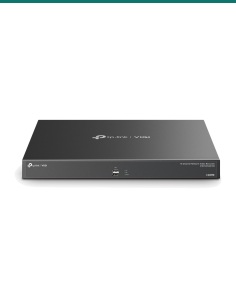
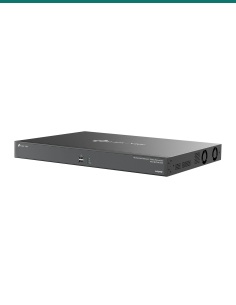
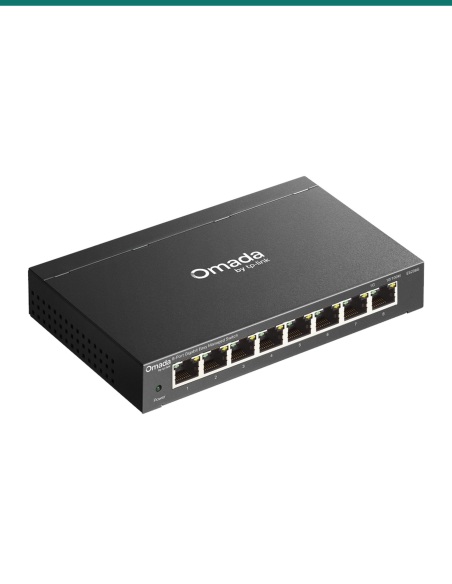
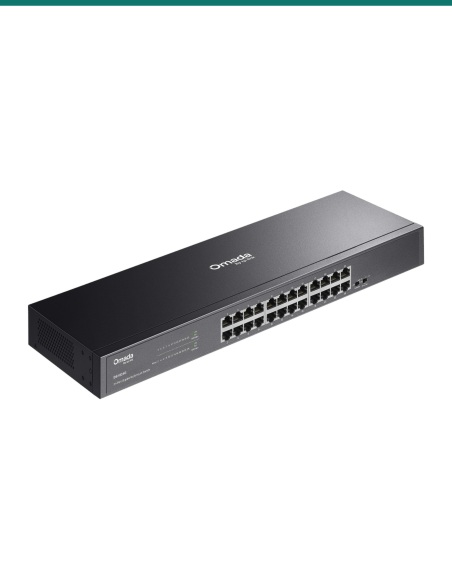
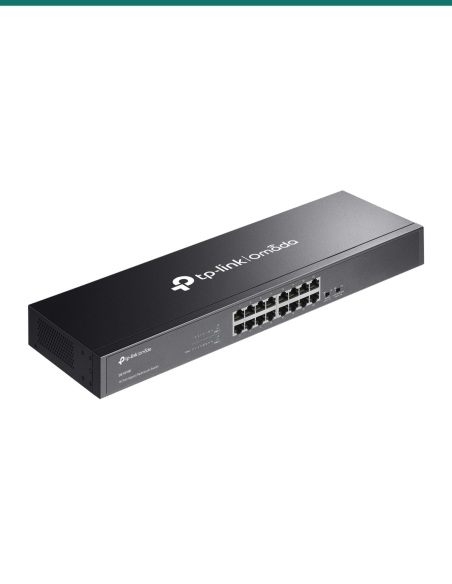
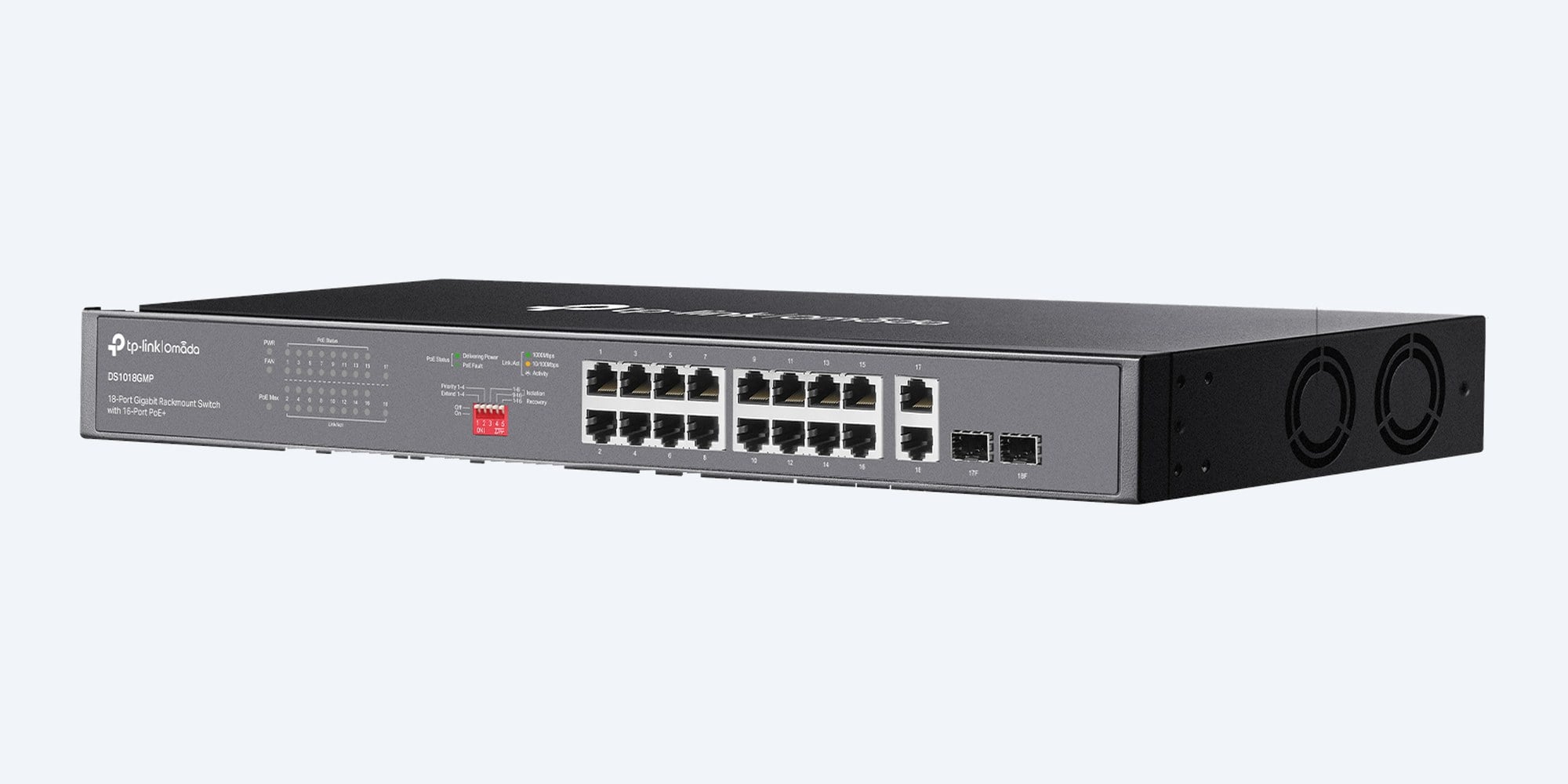
The DS1018GMP is a plug-and-play 19-inch rackmount switch with 16 gigabit PoE+ ports, a 250 W PoE budget and two gigabit combo uplinks, set up with switches on the front instead of software.
In one sentence: the TP-Link Omada DS1018GMP is an 18-port unmanaged gigabit rackmount switch with 16 IEEE 802.3af/at PoE+ ports at up to 30 W each, a 250 W total PoE budget, two gigabit combo SFP/RJ45 uplinks and a built-in 100–240 V AC power supply.
Switch only. Cables, SFP modules and powered devices are separate.
The power supply is built in and TP-Link lists the power cord, rackmount kit and rubber feet in the box.
In the box- DS1018GMP switch
- Power cord
- Rackmount kit
- Rubber feet
- Installation guide
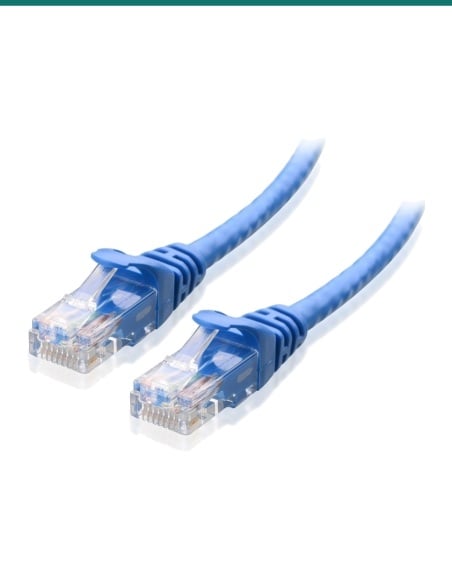
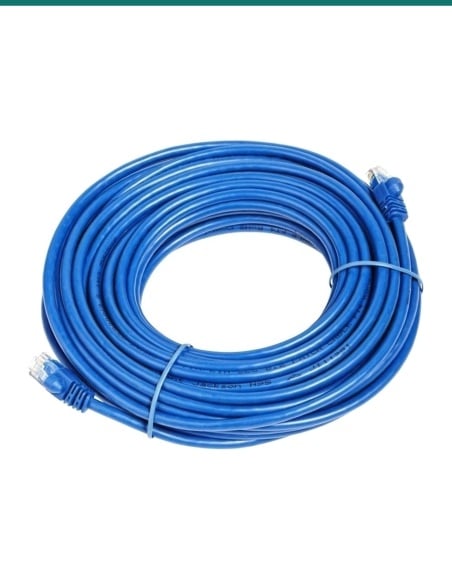
You also need- Cat5e or Cat6 patch leads and cable runs
- Gigabit SFP modules if you use the fibre side of the combo uplinks
- Rack screws to suit your cabinet (not included)
- A router, recorder or core switch to uplink to
Power a whole floor of cameras and access points.
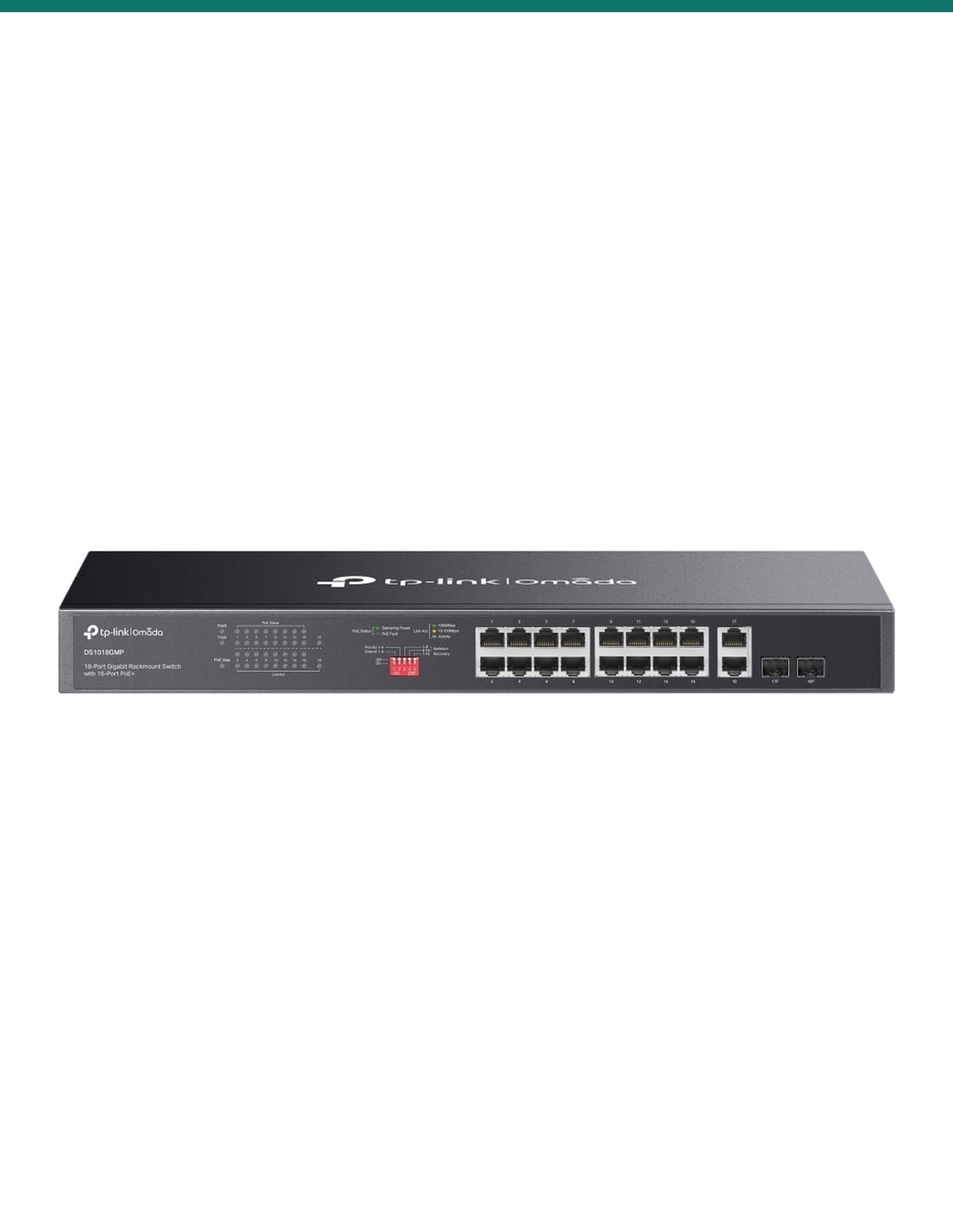
Each of ports 1 to 16 supplies up to 30 W of 802.3af/at PoE+, with 250 W shared across them. That is enough for a mix of VIGI cameras, Omada access points and IP phones. Five switches on the front turn on Priority, Extend, Isolation and PoE Auto Recovery, so there is no software to learn.
Front panel
16 PoE+ ports and two combo uplinks.
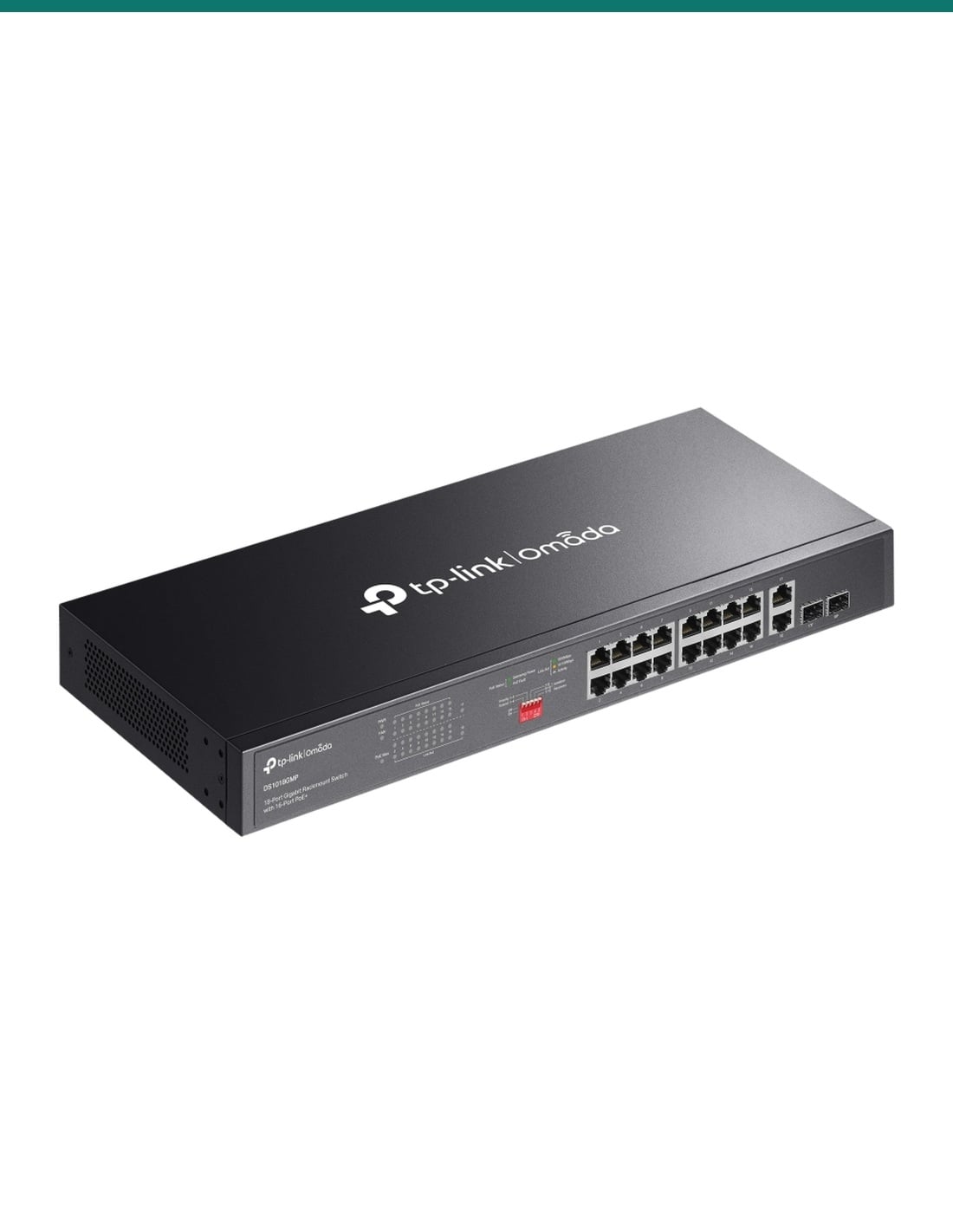
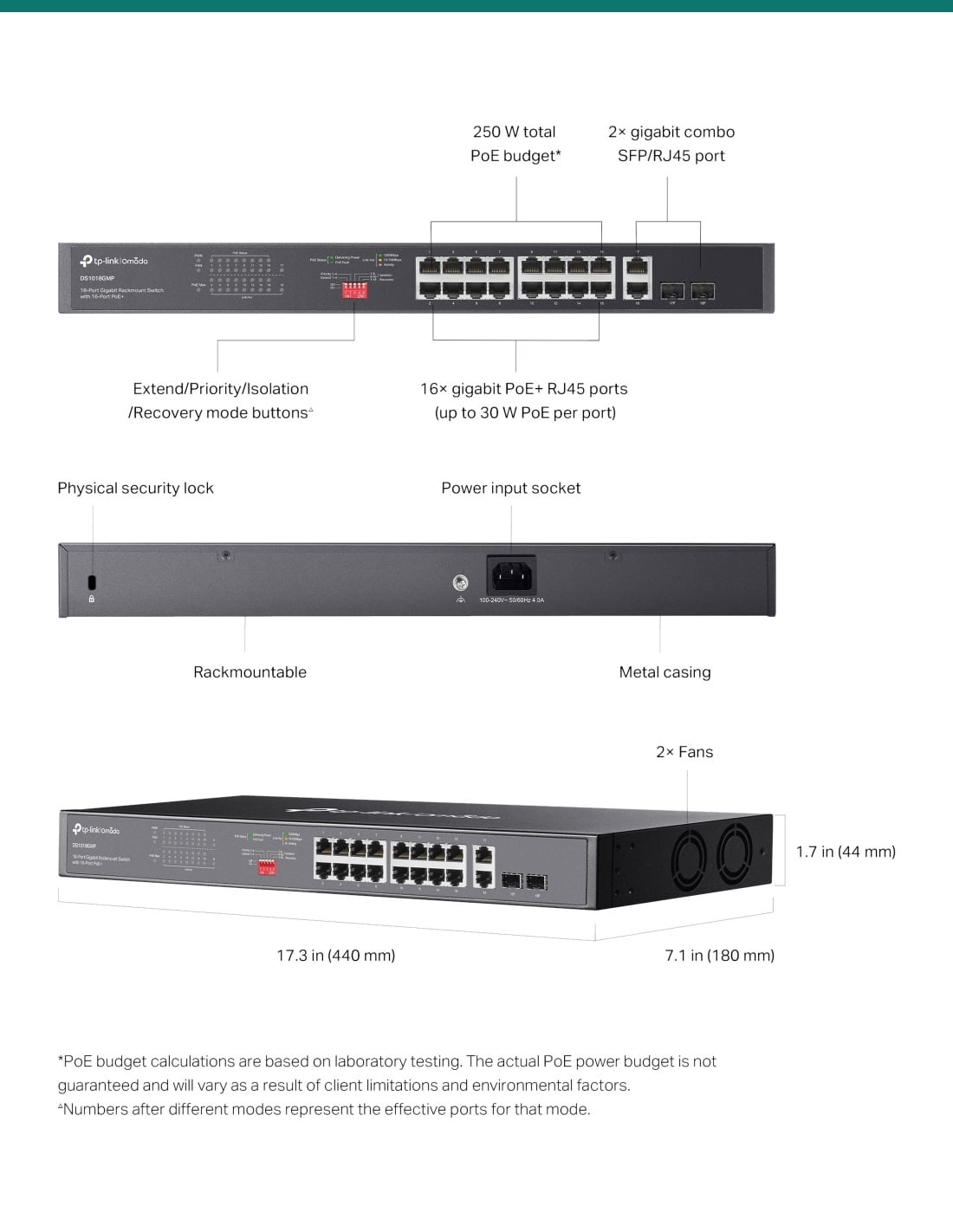
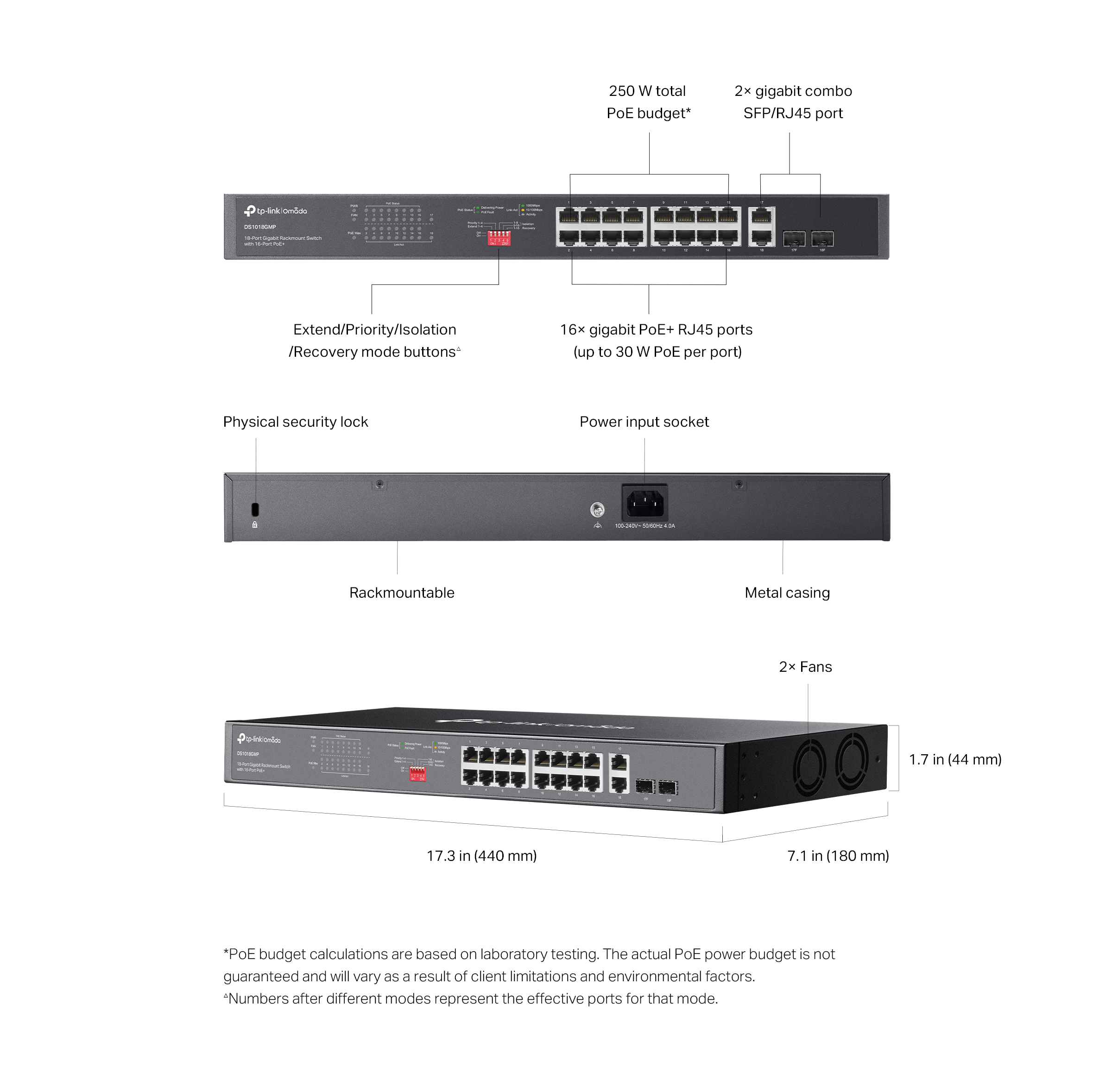
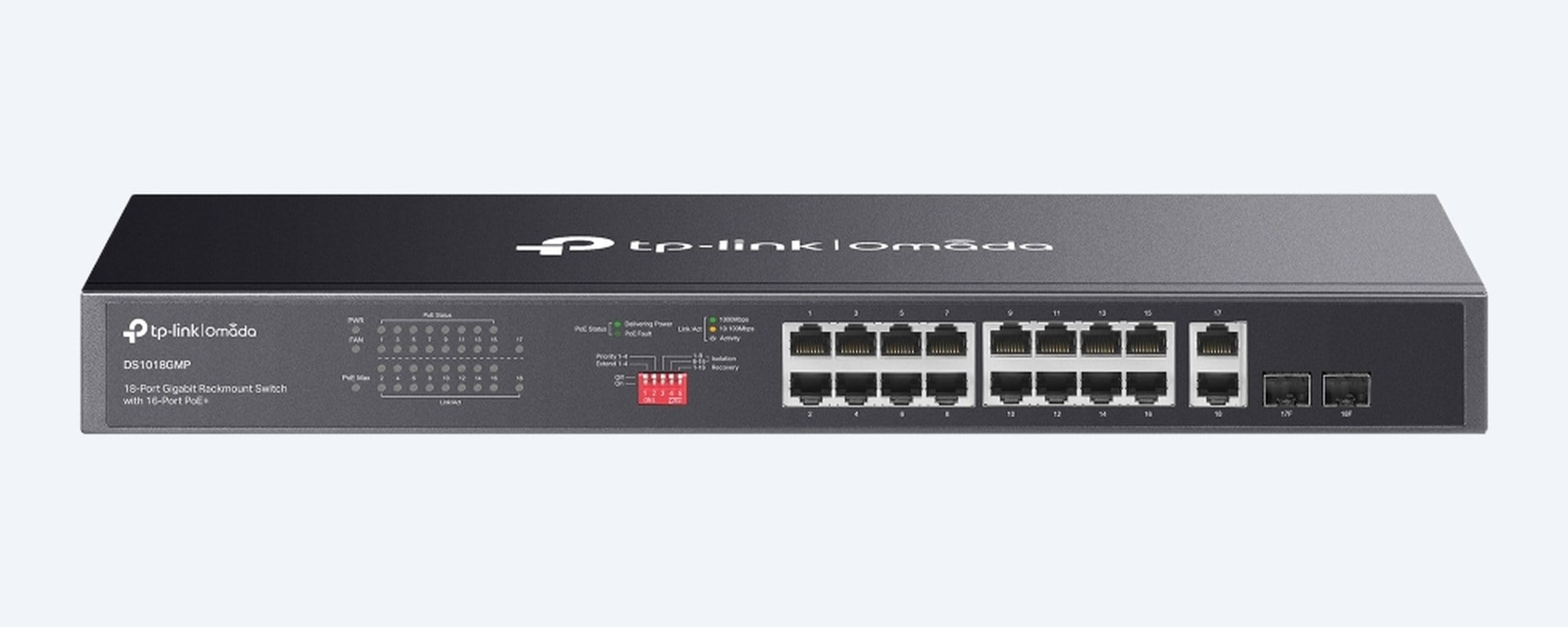
Ports 1 to 16 are gigabit PoE+. Ports 17 and 18 are combo uplinks: use either the RJ45 port or the SFP slot beside it (17F, 18F), not both. On the left are the PWR, FAN and PoE Max lights and the PoE Status and Link/Act light for each port.
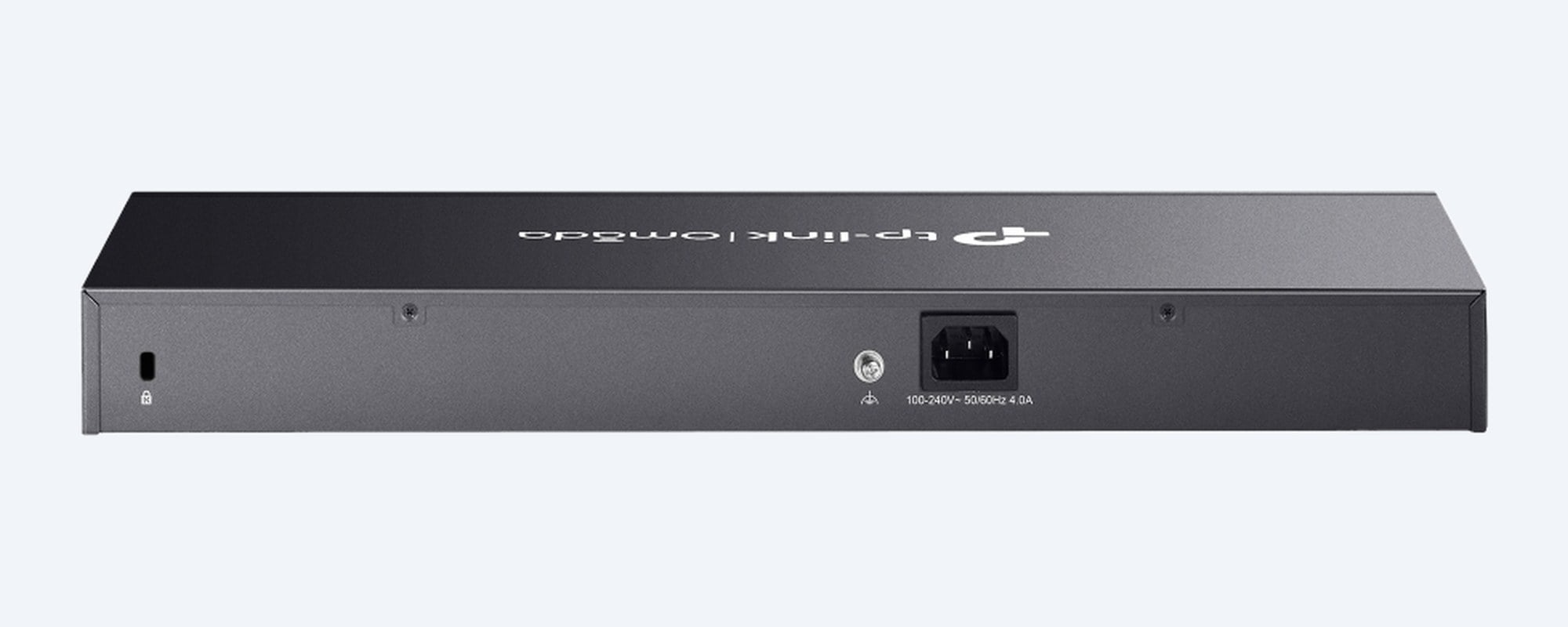
Rear panel
Built-in power supply.
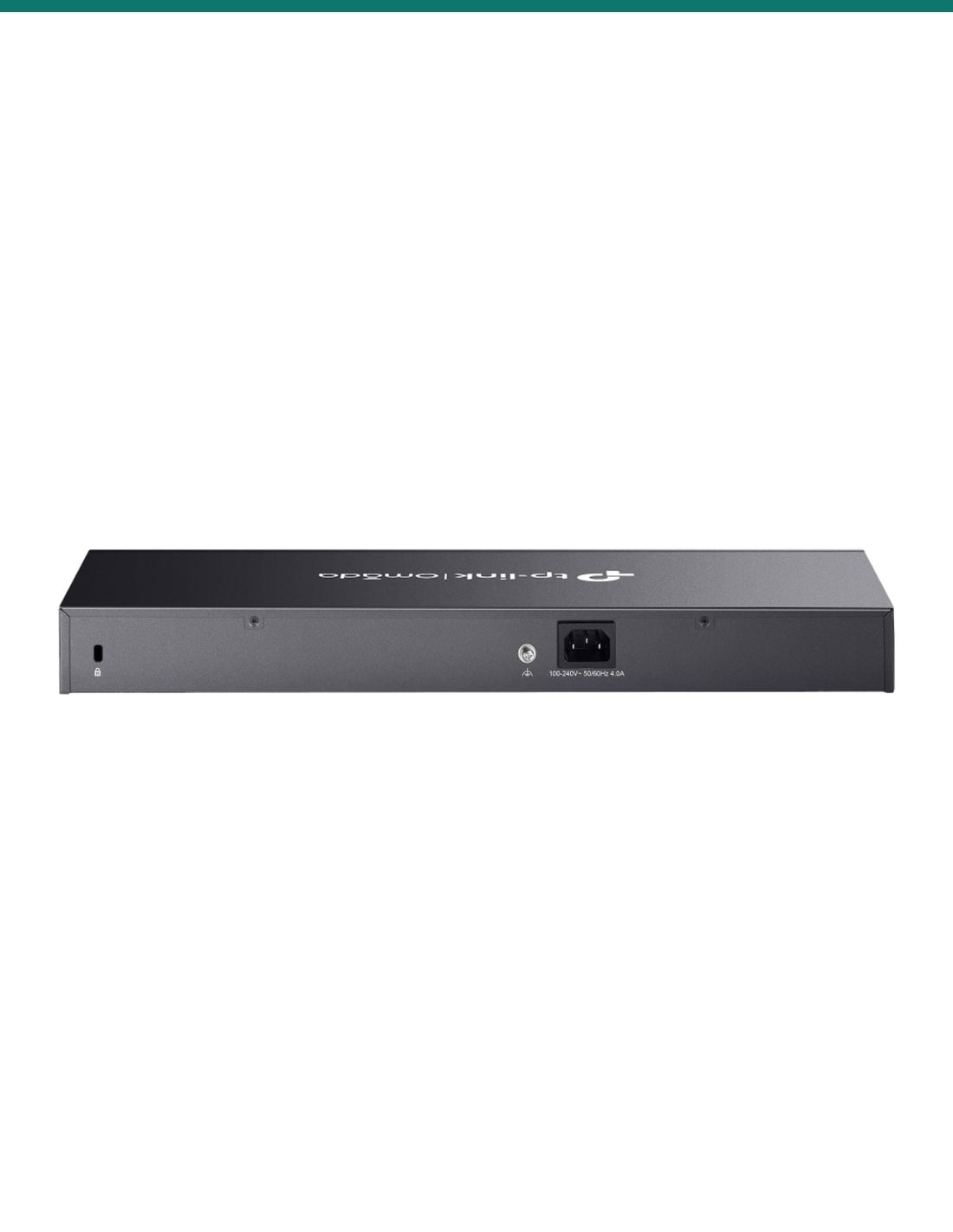
A standard AC socket for the supplied power cord (100–240 V, 50/60 Hz), a grounding terminal and a Kensington security slot. No external power brick to lose or mount.
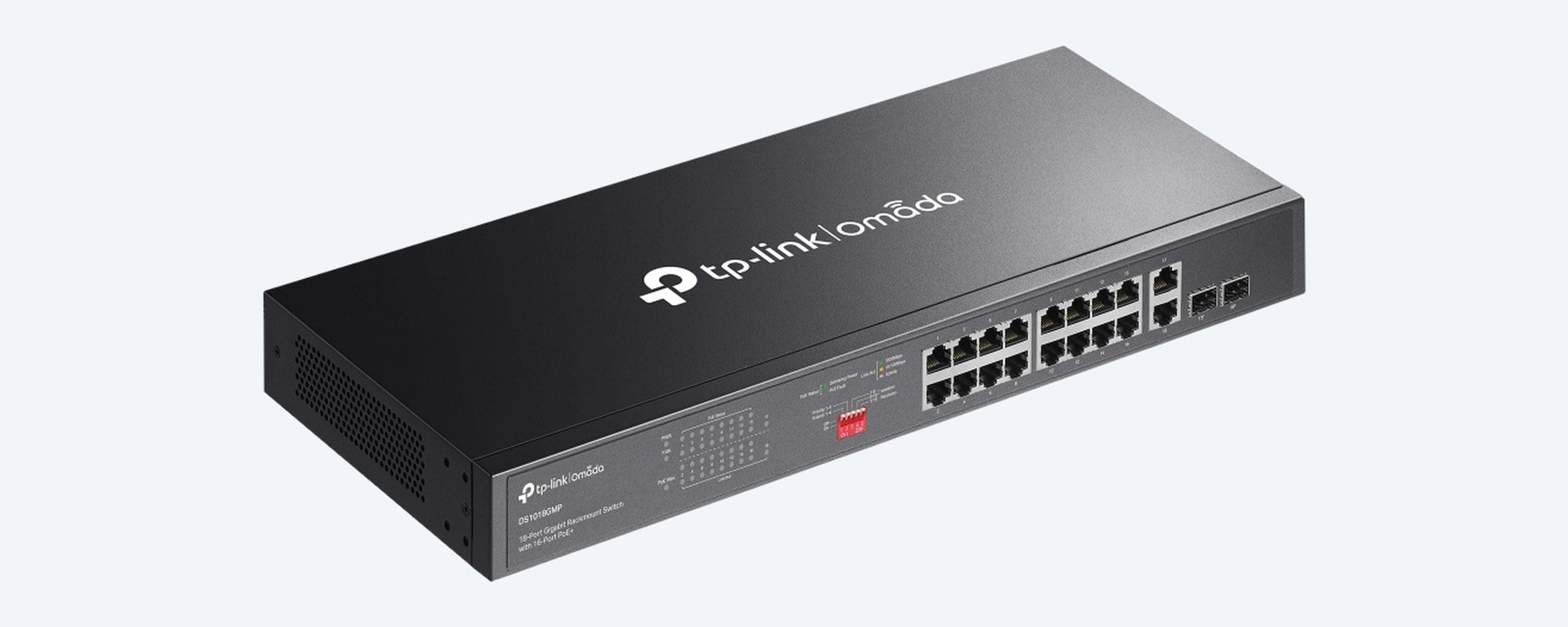
Chassis
1U steel case, desk or rack.
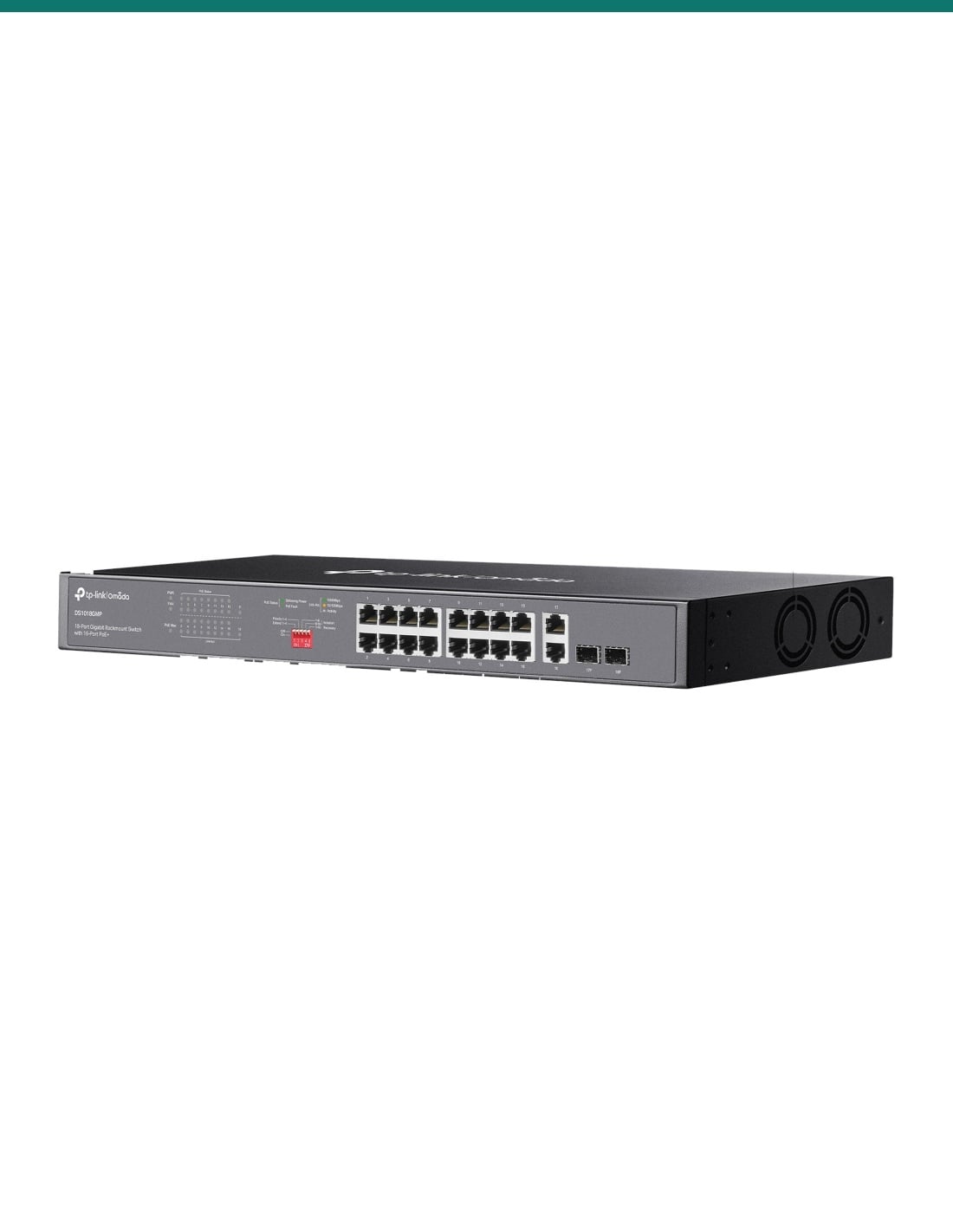
440 × 180 × 44 mm. Fit the rackmount brackets for a 19-inch cabinet, or stick on the rubber feet and stand it on a shelf. Two fans on the side keep it cool under a full PoE load.
How it goes in
From box to powered devices.
01
Mount it
Screw the brackets to the sides and fix it in a 19-inch rack, or fit the rubber feet for a shelf. Leave the side fan vents clear.
02
Set the modes
Flick the front switches you need: Priority and Extend for ports 1 to 4, Isolation for ports 1–8 and 9–16, and PoE Auto Recovery.
03
Connect the network
Uplink port 17 or 18 (RJ45 or SFP) to your router, recorder or core switch, then plug cameras, access points and phones into ports 1 to 16.
04
Power and check
Connect the grounding terminal if your rack is earthed, plug in the power cord and check the PWR, FAN and PoE Status lights.
At a glance
DS1018GMP
Show specs
PoE ports
16 × 10/100/1000 Mbps RJ45, all PoE+ (ports 1–16)
Uplinks
2 × gigabit combo ports: RJ45 17/18 or SFP 17F/18F
PoE
IEEE 802.3af/at; up to 30 W per port; 250 W total budget
Extend Mode
Ports 1–4, up to 250 m at 10 Mbps
Isolation Mode
Ports 1–8 / 9–16
PoE Auto Recovery
Ports 1–16
QoS
802.1p/DSCP; IEEE 802.3x flow control
Switching capacity
36 Gbps; 26.79 Mpps forwarding; store and forward
Packet buffer and MAC table
4.1 Mbit; 8K MAC addresses
Standards
IEEE 802.3, 802.3i, 802.3u, 802.3ab, 802.3z, 802.3af, 802.3at, 802.3x, 802.1p, 802.1q
Network media
Cat5e or better for 1000BASE-T (100 m); 1000BASE-X multimode or single-mode fibre on SFP
Management
Unmanaged, plug and play; not managed by Omada SDN
Power supply
Built in, 100–240 V AC, 50/60 Hz
Power use
293.3 W maximum; 997.22 BTU/h
Cooling and noise
2 fans; 45.5 to 48.95 dBA at 50 cm
Size and mounting
440 × 180 × 44 mm; desktop or 19-inch rack
Security
Kensington security slot (lock not included)
Certification
CE, FCC, RoHS
Warranty
3 years, TP-Link Australia
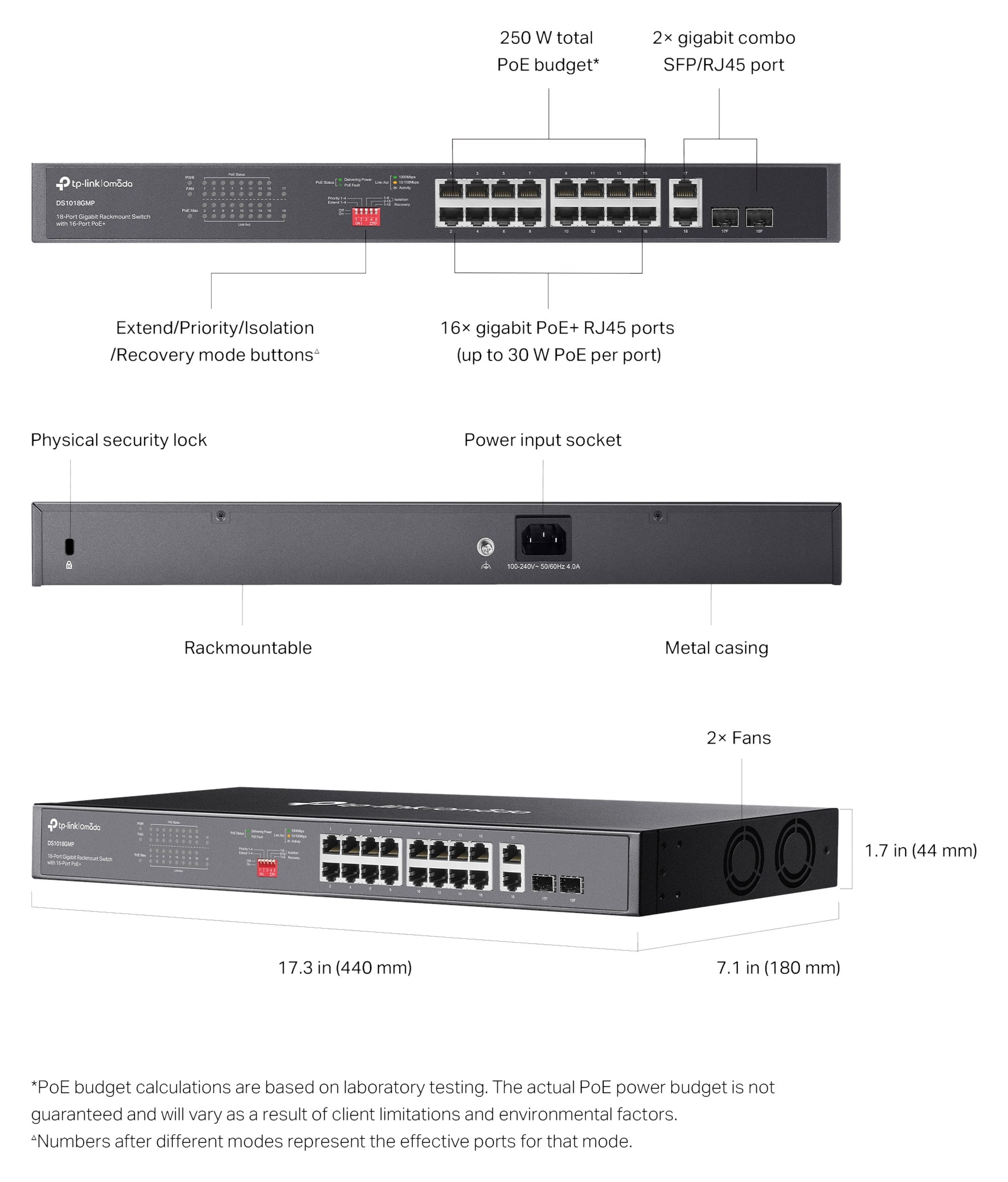
TP-Link's DS1018GMP drawing: front ports and switches, rear power socket, 440 × 180 × 44 mm.
Pair it with
What this switch works with
Cameras
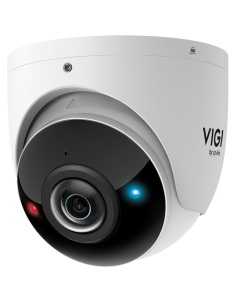
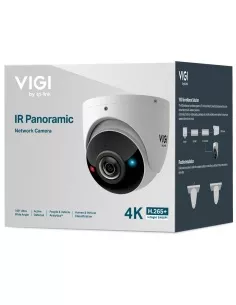
TP-Link VIGI PoE cameras
Up to 16 PoE cameras. Plug the recorder or key cameras into ports 1 to 4 and turn on Priority.
Wi-Fi
Omada access points
PoE+ access points up to 30 W each, within the 250 W total across all 16 ports.
Uplink
Gigabit SFP modules
For fibre uplinks on 17F and 18F, multimode or single-mode. Ask us which module suits your run.
Cabinet
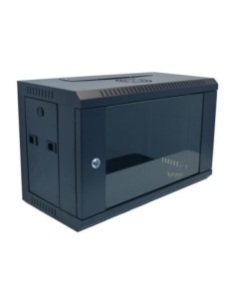
A 19-inch rack
The rackmount kit is in the box. Add a shelf or patch panel for a tidy install.
Where it is used
Where a 16-port PoE+ rack switch fits.
Medium CCTV systems
Up to 16 PoE cameras into one switch, with Priority on the recorder ports.
Offices
Ceiling access points, IP phones and desk ports from one rack unit.
Schools and clubs
Access points across classrooms and halls, powered from the comms cabinet.
Warehouses and yards
Extend mode reaches 250 m on ports 1 to 4 for far corners and gates.
Retail and hospitality
Cameras, guest Wi-Fi and point-of-sale with Isolation for shared areas.
Strata and apartments
Common-area cameras and access points kept apart with Isolation mode.
DS1018GMP or DS110GMP
| DS1018GMP (this switch) | DS110GMP |
|---|
| PoE+ ports | 16 | 8 |
| Other ports | 2 gigabit combo SFP/RJ45 | 1 gigabit RJ45 + 1 gigabit combo SFP/RJ45 |
| PoE budget | 250 W | 123 W |
| Switching capacity | 36 Gbps | 20 Gbps |
| Priority Mode | Ports 1–4 | Ports 1–2 |
| Power | Built in, 100–240 V AC | External 53.5 V DC adapter |
| Cooling | 2 fans | Fanless |
| Size and mounting | 440 × 180 × 44 mm, desk or 19-inch rack | 209 × 126 × 26 mm, desk or wall |
From TP-Link's DS1018GMP and DS110GMP datasheets (Omada unmanaged switches).
Common questions
How much PoE power does the DS1018GMP have?
250 W in total, shared across ports 1 to 16, with up to 30 W on any one port (IEEE 802.3af/at PoE+).
Are all 16 ports PoE?
Yes. Ports 1 to 16 are all gigabit PoE+. The two combo uplinks, 17 and 18, carry data only.
How do the combo ports work?
Port 17 and SFP slot 17F share one connection, as do 18 and 18F. Use the RJ45 or the SFP side of each, not both at once.
Is it managed?
No. It is plug and play with no web page or VLAN setup, and it is not managed by Omada SDN. Features are set with switches on the front.
What does Extend mode do?
It lets ports 1 to 4 run data and power up to 250 m. Those ports drop to 10 Mbps, which most cameras handle.
What does Priority mode do?
Ports 1 to 4 send their traffic ahead of the other ports, so put the recorder or key cameras there.
What does Isolation mode do?
The isolated ports can no longer talk to each other, only to the uplink ports. It works on ports 1–8 and 9–16.
What is PoE Auto Recovery?
The switch watches each powered device on ports 1 to 16 and reboots one that stops responding.
Is the power supply built in?
Yes. It runs from 100–240 V AC and TP-Link lists the power cord in the box.
Is it noisy?
It has two fans. TP-Link rates it at 45.5 to 48.95 dBA at 50 cm, so a comms cabinet or back room suits it better than a quiet desk.
Can it go in a rack?
Yes. The rackmount kit is in the box for a standard 19-inch rack. Rubber feet are included for a shelf or desk.
Who can install the cable?
Concealed data cabling to cameras, access points and outlets is customer cabling under AS/CA S009 and needs an ACMA-registered cabler.
Supported by InFront Technologies.
Send us your camera and access point list and we will check the 250 W budget: call 1300 736 970 or email [email protected]. The datasheet is on the Attachments tab. 3-year TP-Link Australia warranty: contact us first and we will look after the claim.
Installation and safety
Mains powered. The switch plugs into a 100–240 V AC outlet with the supplied cord. Earth the grounding terminal in a rack. A new power point needs a licensed electrician.
Cabling. Concealed data cabling is customer cabling under AS/CA S009 and needs an ACMA-registered cabler. Outdoor runs need outdoor-rated cable.
Ventilation. Keep the side fan vents clear and mount it in a ventilated cabinet or room.
What it does not do. No VLAN setup, web interface or Omada SDN management, no 802.3bt PoE++ and no 10G uplinks.
Figures. From TP-Link's DS1018GMP datasheet (V1) and installation guide.