TP-Link · 4G LTE Router
Pop in a SIM, get Wi-Fi.
4G LTE, N300, up to 32 devices.
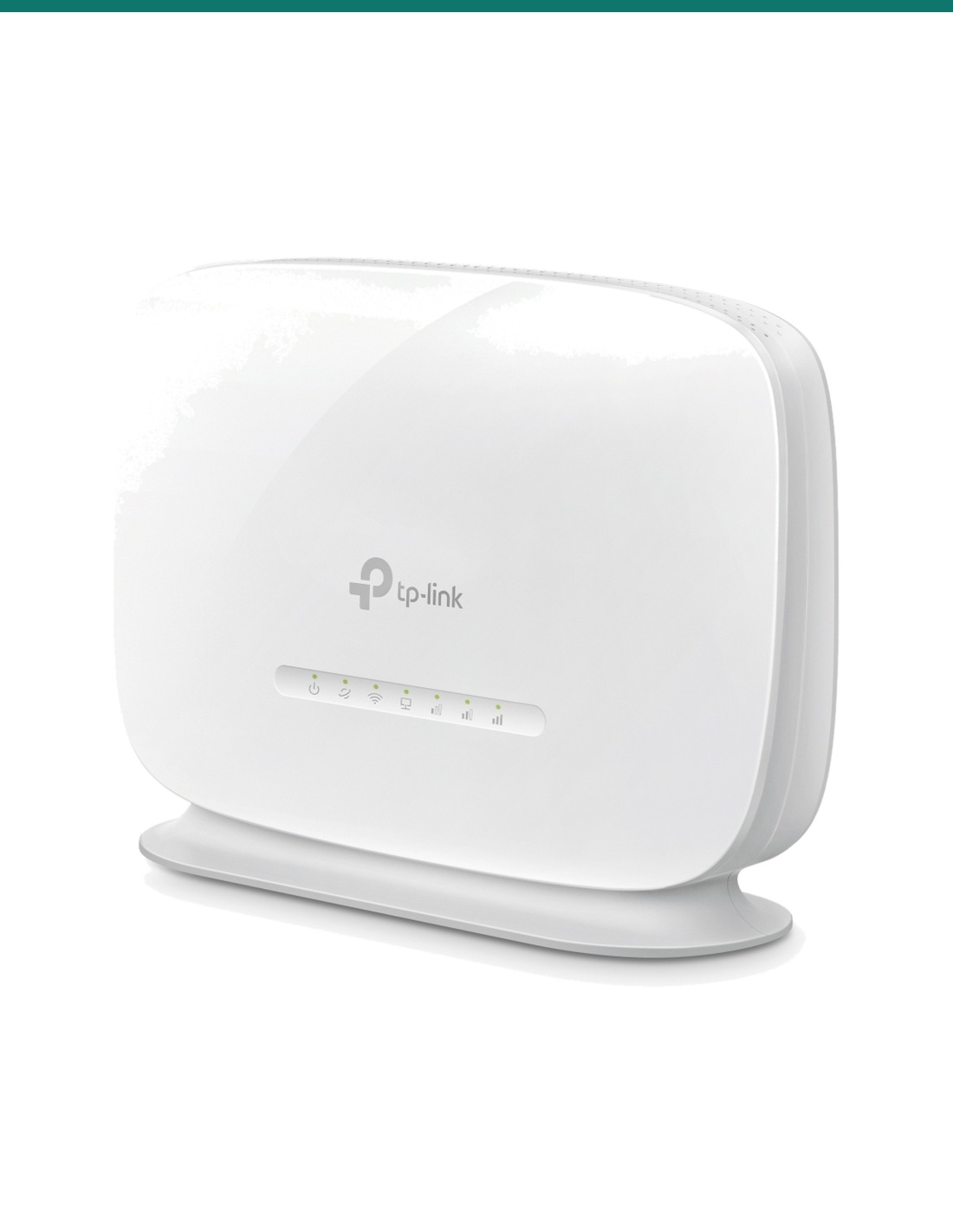
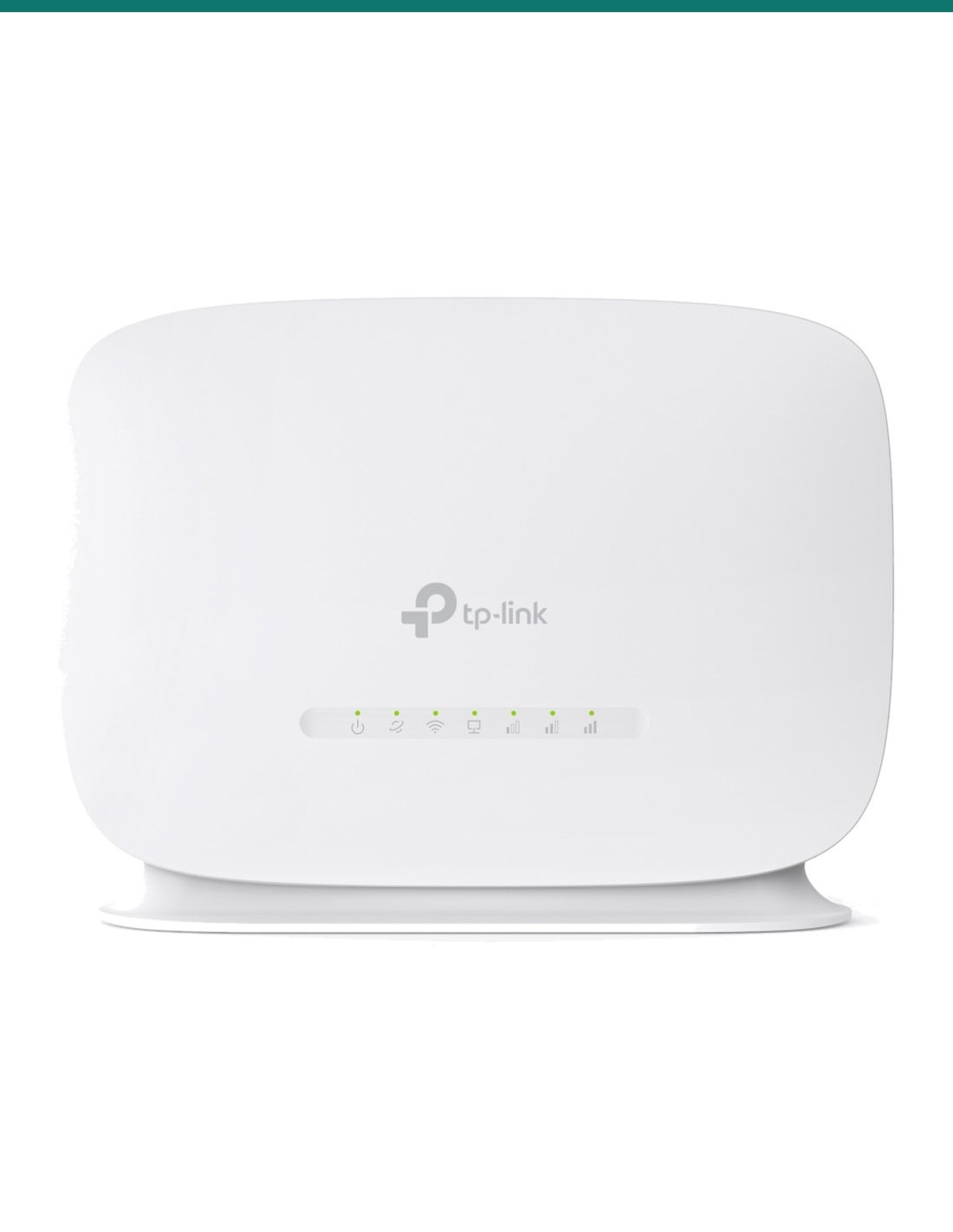
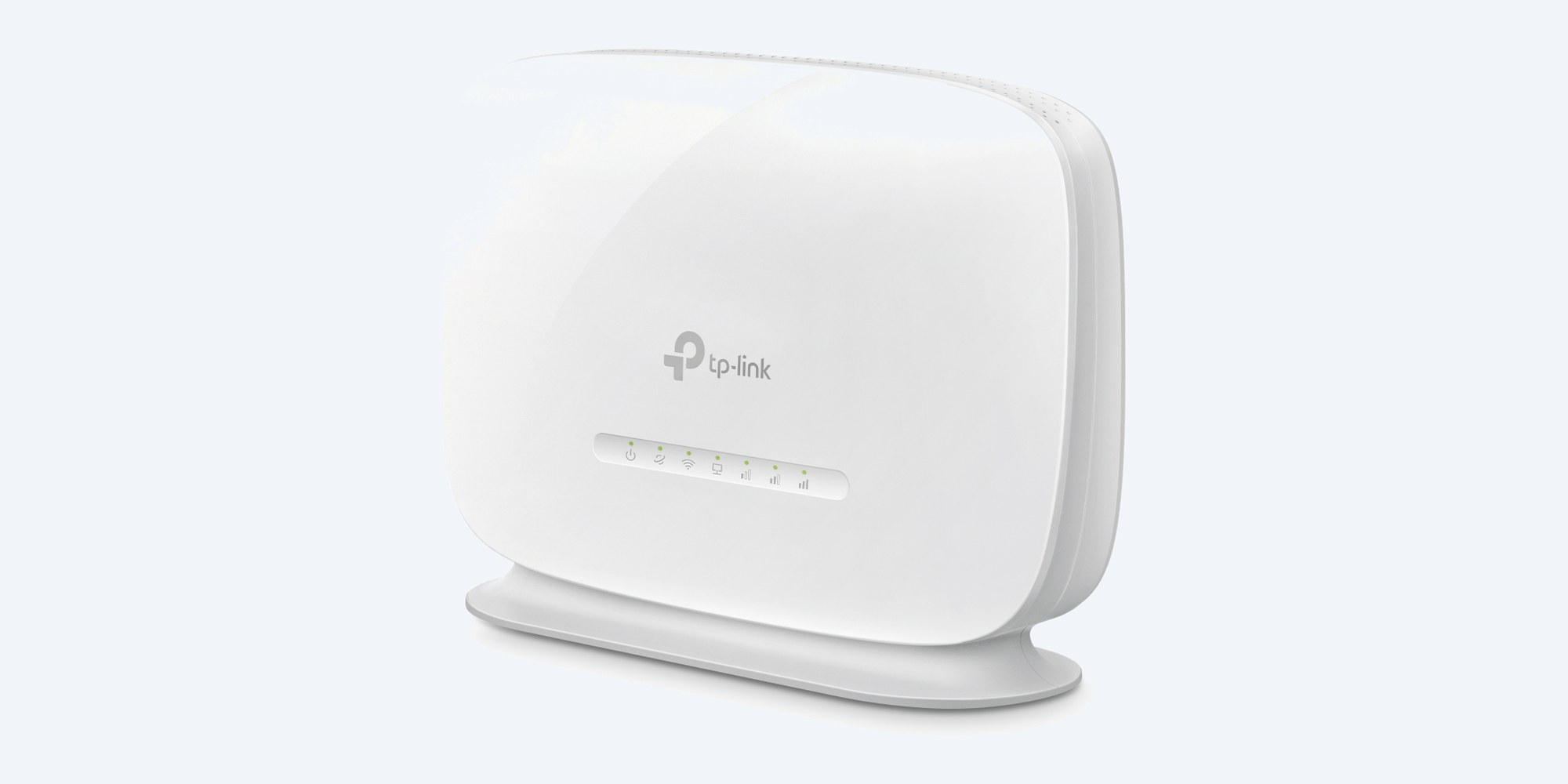
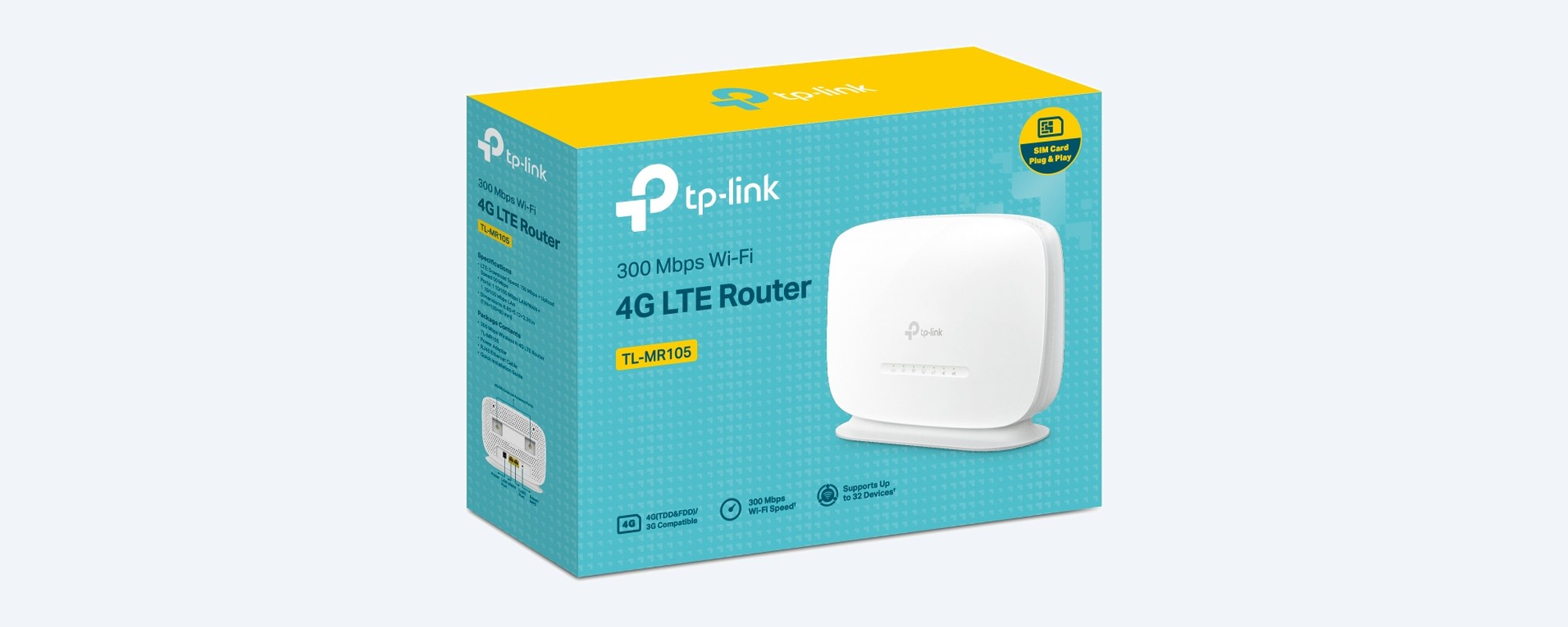
The TL-MR105 is a simple indoor 4G router. Put a nano SIM in it, plug it in, and it shares the mobile connection over 2.4 GHz Wi-Fi and two network ports. It also works as a normal router behind an NBN or other modem, with 4G as the backup.
In one sentence: the TP-Link TL-MR105 is an indoor 4G LTE router with a nano SIM slot (up to 150 Mbps down, 50 up), 300 Mbps 2.4 GHz Wi-Fi for up to 32 devices, two 10/100 ports (one LAN/WAN), and two external antenna ports.
Indoor router. SIM and external antennas not included.
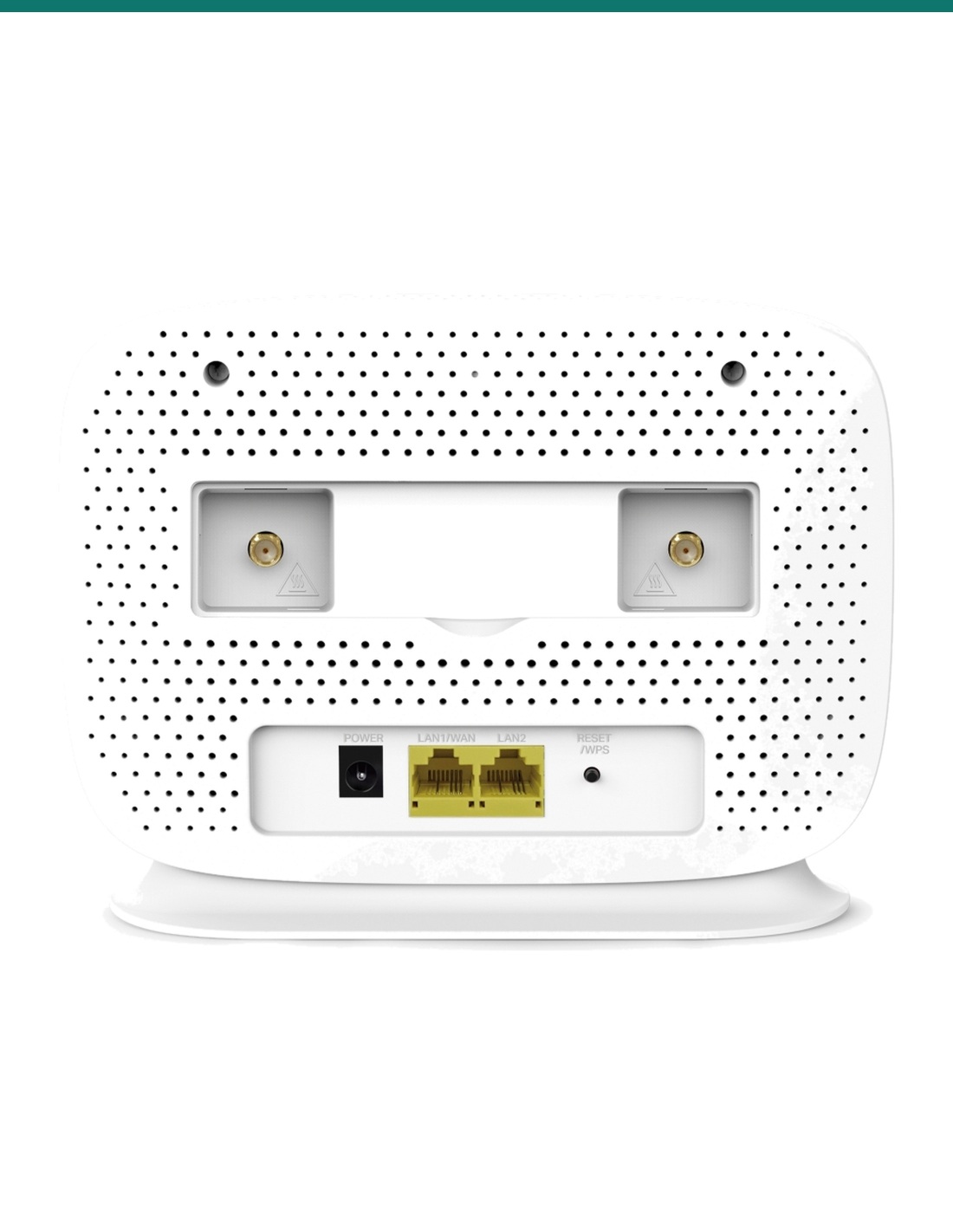
This is a desktop router for indoor use (0 °C to 40 °C). It has internal 4G and Wi-Fi antennas plus two external antenna ports for an optional 4G antenna, which is sold separately. Bring your own nano SIM with a data plan.
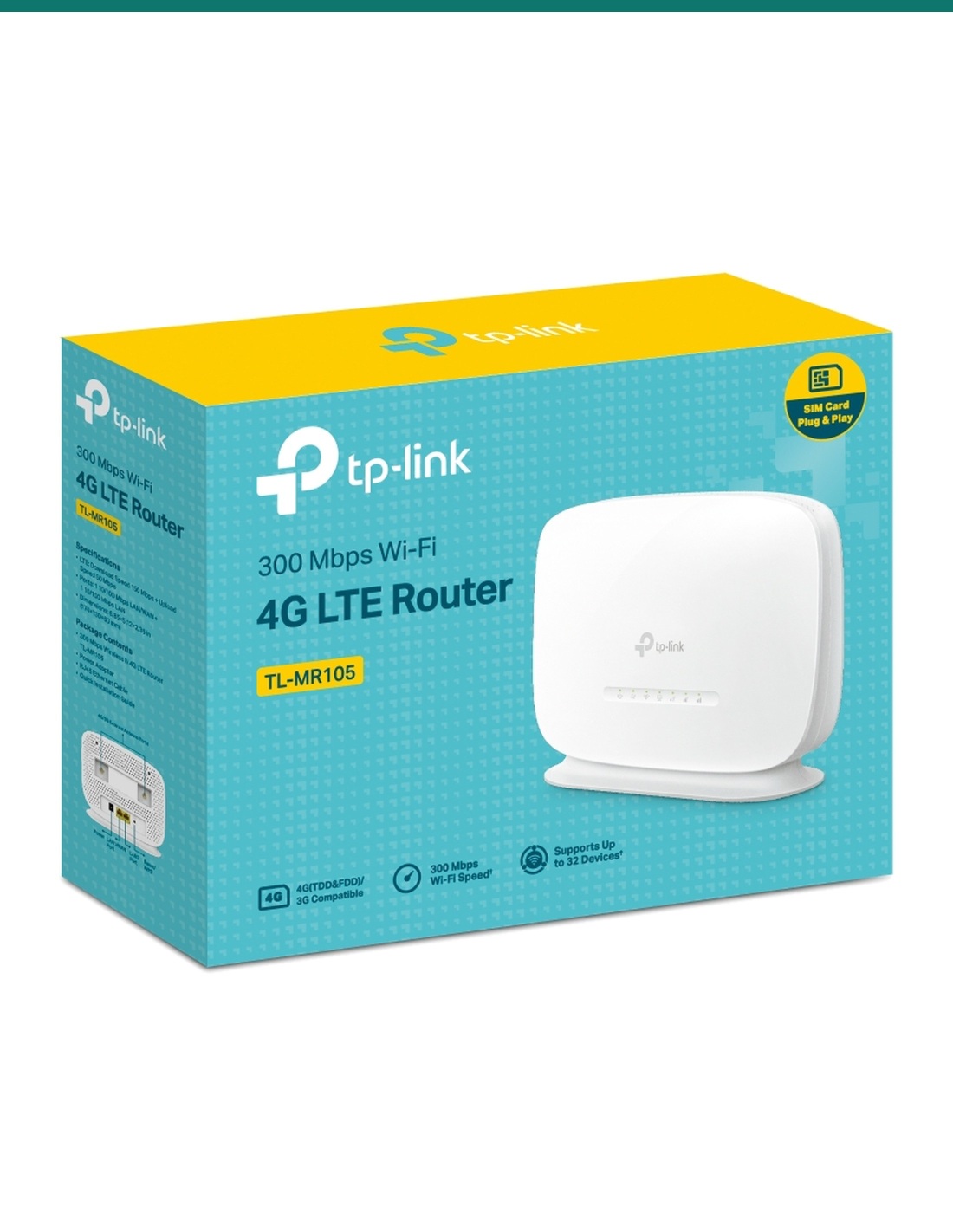
In the box- TL-MR105 4G LTE router
- Power adapter (9 V 0.85 A)
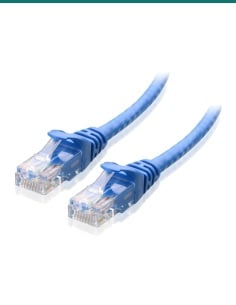
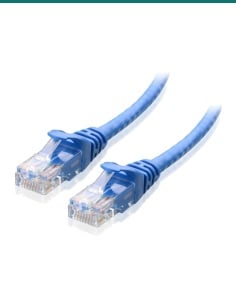
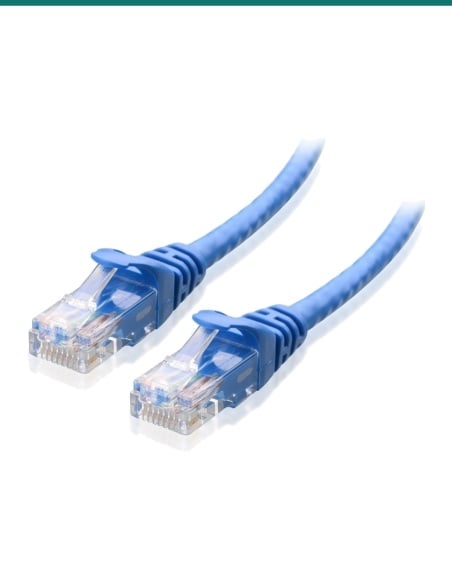
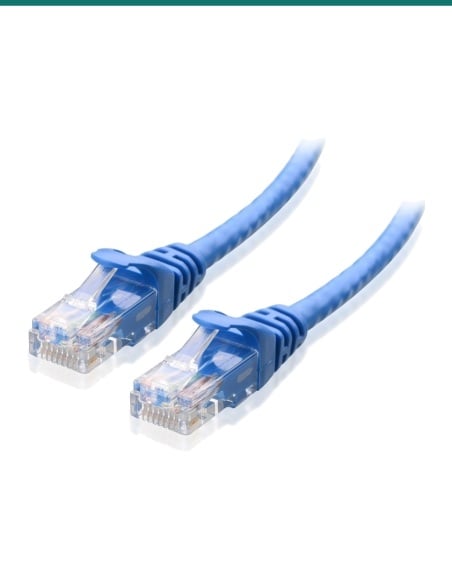
- RJ45 Ethernet cable
- Quick installation guide
You also need- A nano SIM with a 4G data plan
- Good 4G signal where it sits, or an external 4G antenna
- A power point nearby
Internet without a fixed line.
The 4G LTE modem reaches up to 150 Mbps down and 50 Mbps up and covers the Australian 4G bands. Wi-Fi is 2.4 GHz N300, which gets through walls well and suits browsing, streaming, EFTPOS and a few cameras. Real 4G speed depends on your carrier and the signal at the site.
Back
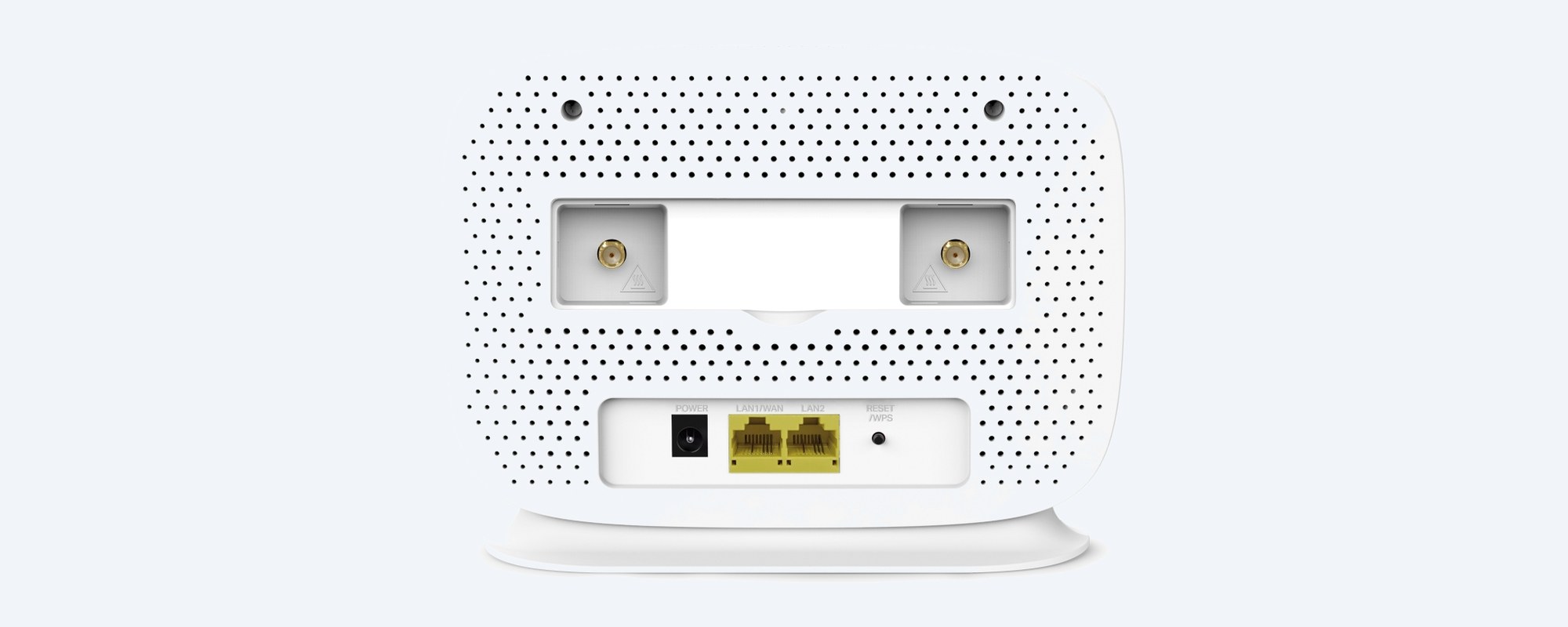
Two ports and two antenna sockets.
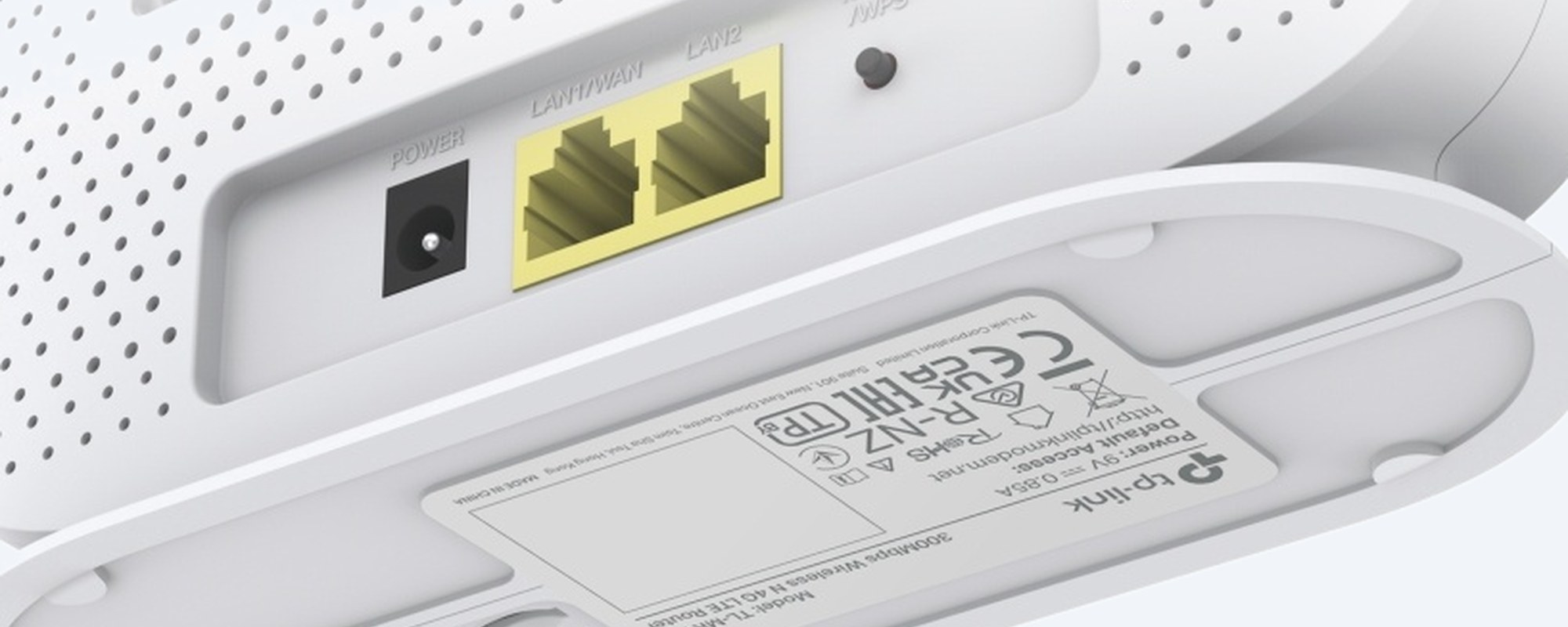
The back has a power socket, a LAN/WAN port, a LAN port and the Reset/WPS button. The two round sockets at the top take an external 4G antenna if the signal inside is weak.
Ports
Use it with or without NBN.
Plug the LAN/WAN port into an NBN or other modem and the TL-MR105 works as a normal router, with 4G as a backup connection. Both ports are 10/100 Mbps.
In the box
Router, power and cable.
TP-Link includes the router, a 9 V power adapter, an Ethernet cable and a quick installation guide. Set it up from a browser or the TP-Link Tether app.
How it goes in
From SIM to Wi-Fi in minutes.
01
Check the signal
Check 4G signal on a phone with the same carrier where the router will sit. Near a window is usually best.
02
Insert the SIM
With the power off, put the nano SIM in the SIM slot, then plug in the power adapter.
03
Connect
Join the Wi-Fi name printed on the label, or plug a computer into a LAN port with the included cable.
04
Set it up
Open the web page or the TP-Link Tether app, enter your carrier's APN if asked, and set your own Wi-Fi name and password.
At a glance
TL-MR105
Show specs
4G modem
4G LTE, 1 nano SIM slot; up to 150 Mbps down, 50 Mbps up
4G bands
LTE FDD B1/B3/B5/B7/B8/B20/B28; TDD B38/B40/B41
Wi-Fi
IEEE 802.11b/g/n, 2.4 GHz, up to 300 Mbps
Antennas
2 internal 4G, 2 internal Wi-Fi, 2 external 4G antenna ports (antennas not included)
Network ports
1 × 10/100 Mbps LAN/WAN, 1 × 10/100 Mbps LAN
Operating modes
3G/4G router, wireless router (with 4G backup)
Wireless security
WPA/WPA2-PSK; WPS button
Features
Guest network, parental controls, port forwarding, Dynamic DNS, IPv6
Management
Web page, TP-Link Tether app, remote management
Power
9 V 0.85 A adapter (included)
Operating range
0 °C to 40 °C; 10% to 90% humidity non-condensing
Warranty
3 years, TP-Link Australia
Pair it with
What the router does not include
Service
A nano SIM and data plan
Any carrier that covers your site on the bands listed. Check signal on a phone where the router will sit.
Weak signal
An external 4G antenna
The two external antenna ports take an outdoor 4G antenna for rural or fringe areas. Confirm with us which connector and antenna suit your site.
Outdoors
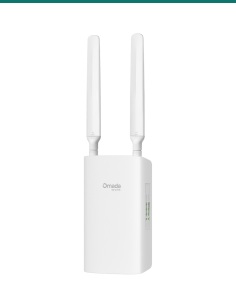
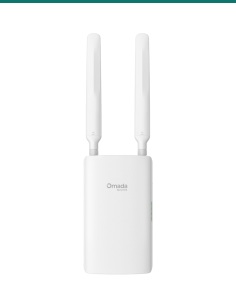
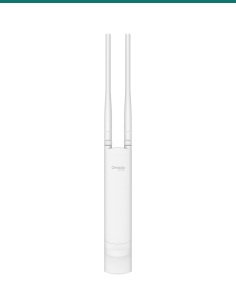
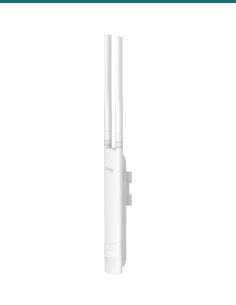
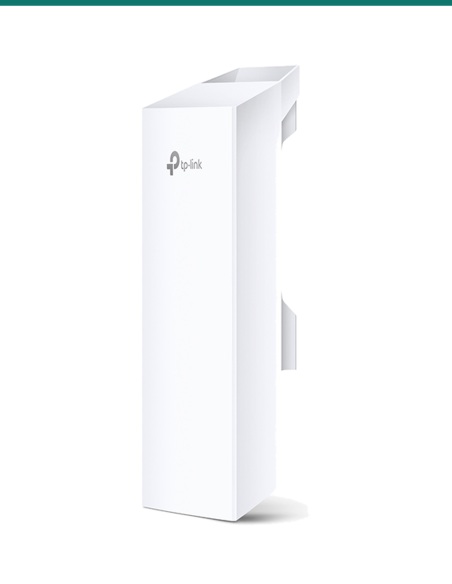
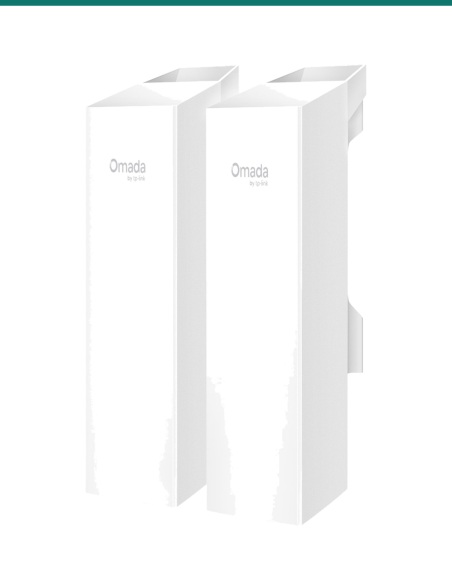
ER703WP-4G-Outdoor gateway
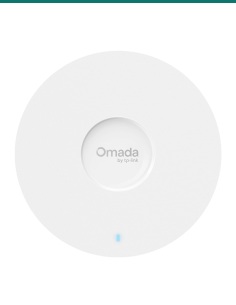
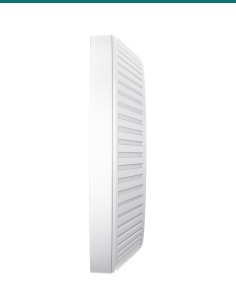
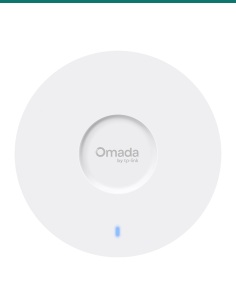
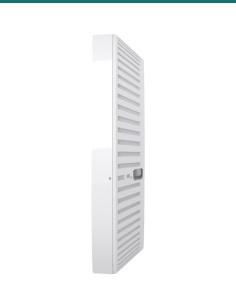
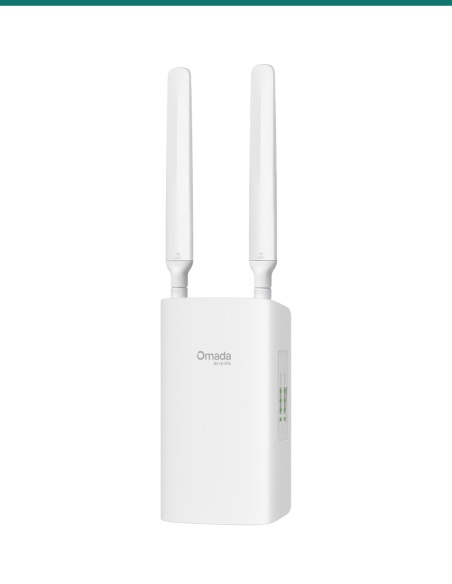
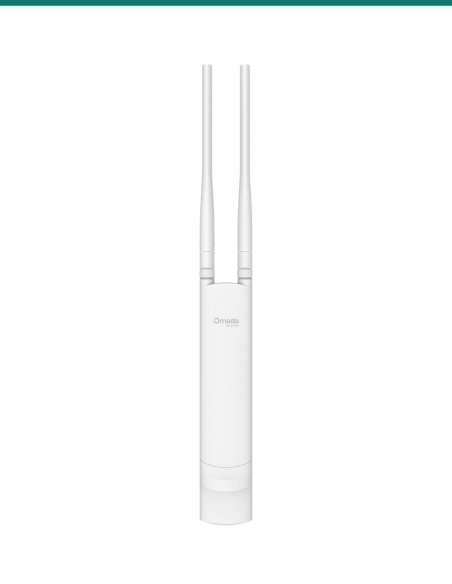
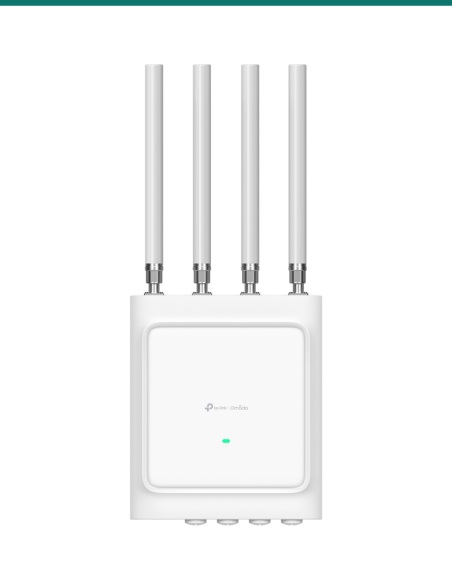
For an outdoor install, faster Cat6 4G, Wi-Fi 6 and PoE for cameras, the Omada ER703WP-4G-Outdoor mounts on a wall or pole.
More wired devices
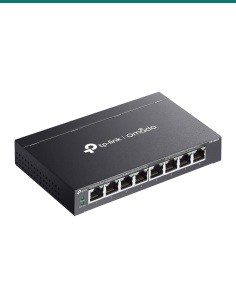
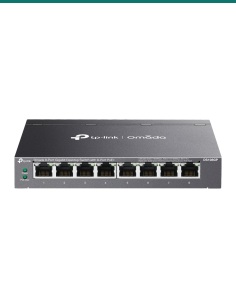
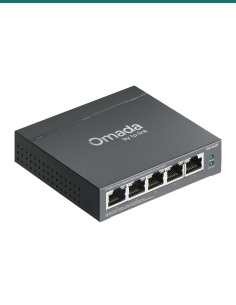
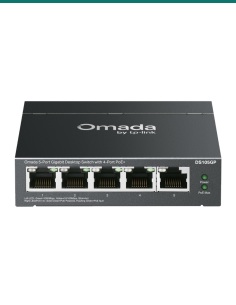
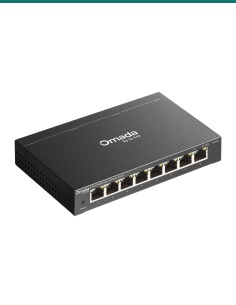
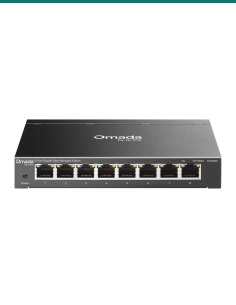
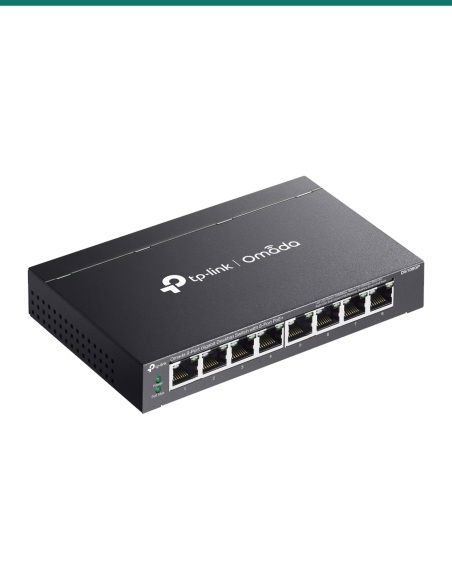
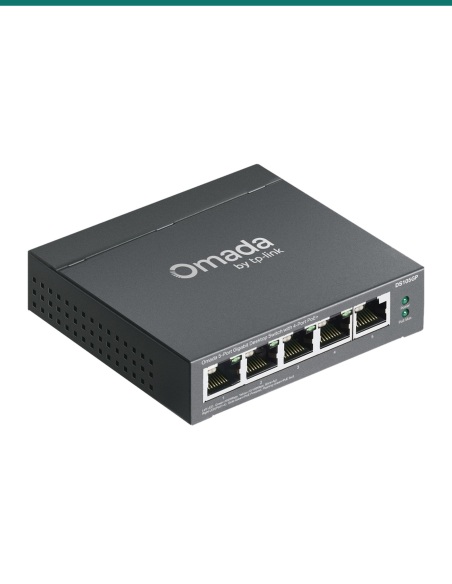
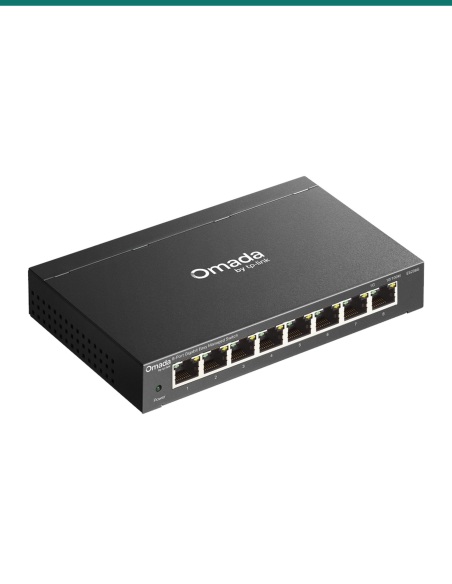
A small network switch
The router has two ports. Add a switch to plug in more cameras, a recorder or a computer.
Where it is used
Where a 4G router fits.
Homes without NBN
Internet for a house, unit or holiday home on 4G.
Rentals and moves
Wi-Fi from day one while the fixed line is connected.
Site offices
Internet in a site shed or demountable.
Small shops
Backup internet for EFTPOS and the till if the NBN drops.
Farm houses
Wi-Fi in a farmhouse or shed with an external antenna for weak signal.
Camera sites
Remote viewing for a small camera system where there is no fixed line.
TL-MR105 or ER703WP-4G-Outdoor
| TL-MR105 (this router) | ER703WP-4G-Outdoor |
|---|
| Where it goes | Indoors only | Outdoors or indoors, IP55 |
| 4G | Up to 150 Mbps down / 50 up | Cat6, up to 300 Mbps down / 50 up |
| Wi-Fi | N300, 2.4 GHz only | AX3000 Wi-Fi 6, 2.4 and 5 GHz |
| Ports | 2 × 10/100 | 3 × Gigabit, PoE in and 2 × PoE out |
| Power | 9 V DC adapter | 802.3at/bt PoE, passive PoE or 12 V DC |
| Management | Tether app and web page | Omada app, cloud or controller; VPN |
Figures from TP-Link's TL-MR105 and ER703WP-4G-Outdoor (1.20) datasheets.
Common questions
Is a SIM card included?
No. Use a nano SIM with a 4G data plan from your carrier.
Which carriers does it work with?
It covers LTE FDD bands 1, 3, 5, 7, 8, 20 and 28 and TDD bands 38, 40 and 41, the bands used for 4G in Australia. Check your carrier's coverage where it will sit.
How fast is it?
Up to 150 Mbps down and 50 Mbps up on 4G, and up to 300 Mbps Wi-Fi on 2.4 GHz. Real speed depends on your carrier and signal.
Does it support 5G?
No. It is 4G LTE. The 3G bands are listed on the datasheet, but Australian 3G networks have closed.
Does it have 5 GHz Wi-Fi?
No. Wi-Fi is 2.4 GHz only (802.11b/g/n, up to 300 Mbps).
How many devices can connect?
TP-Link quotes up to 32 Wi-Fi devices.
Can I add an external antenna?
Yes. It has two external antenna ports for a 4G antenna, sold separately. Confirm with us which antenna suits your site.
Can I use it with NBN?
Yes. Plug the LAN/WAN port into the NBN or other modem and it works as a wireless router, with 4G as a backup.
Can it go outside?
No. It is an indoor router rated 0 °C to 40 °C. For outdoors, look at the ER703WP-4G-Outdoor.
How do I set it up?
From a browser or the TP-Link Tether app. Insert the SIM, power it on, join the Wi-Fi on the label and follow the quick setup.
Does it have parental controls?
Yes. It has parental controls to block websites and set time limits, plus a 2.4 GHz guest network.
Are the ports Gigabit?
No. Both Ethernet ports are 10/100 Mbps, which is above the 4G speed it can reach.
Supported by InFront Technologies.
Help with 4G signal, antennas or setup: call 1300 736 970 or email [email protected]. The TP-Link datasheet is on the Attachments tab. 3-year TP-Link Australia warranty: contact us first and we will look after the claim.
Installation and safety
Low-voltage device. Runs from the 9 V 0.85 A adapter in the box. The adapter plugs into mains power; keep both dry and indoors.
Placement. Indoor use only, 0 °C to 40 °C. Keep the vents clear and away from heat sources.
External antennas. An outdoor 4G antenna on a roof is work at height and needs proper earthing. Use a licensed installer.
What it does not do. No 5G, no 5 GHz Wi-Fi, no Gigabit ports, and no SIM or external antennas in the box.
Figures. From TP-Link's TL-MR105 datasheet and TP-Link's V1.20 product page. Real 4G and Wi-Fi speeds depend on the site.