TP-Link · Omada · Unmanaged PoE+
Eight PoE+ ports on your desk.
123 W budget, no setup.
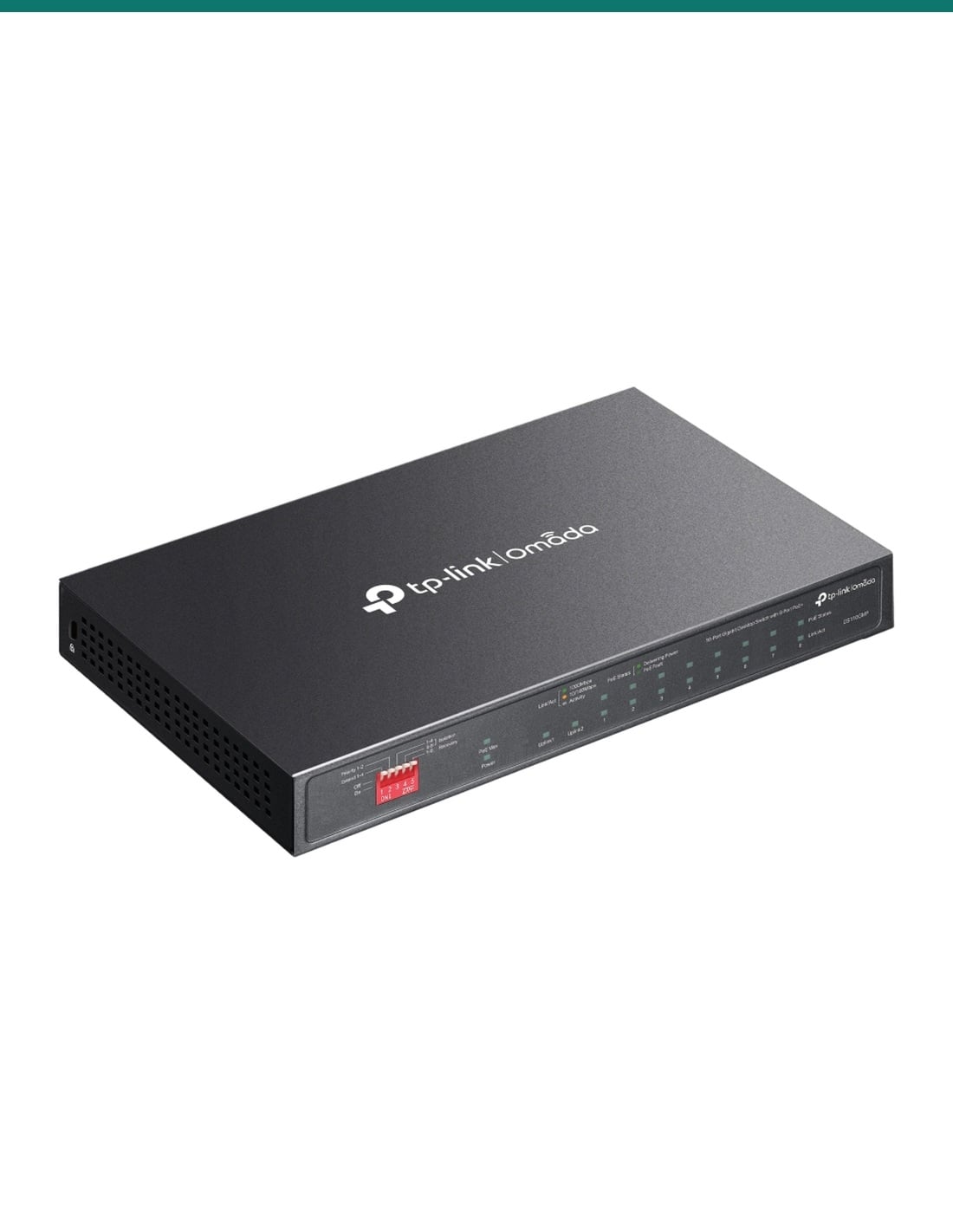
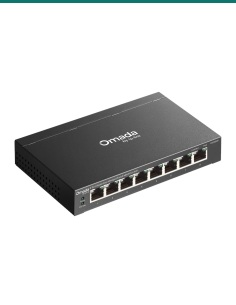
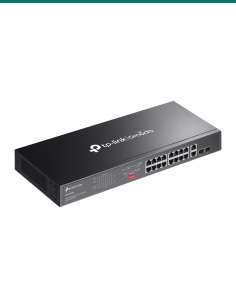
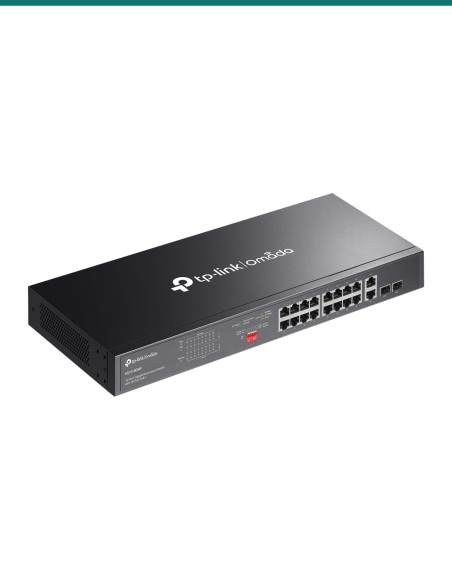
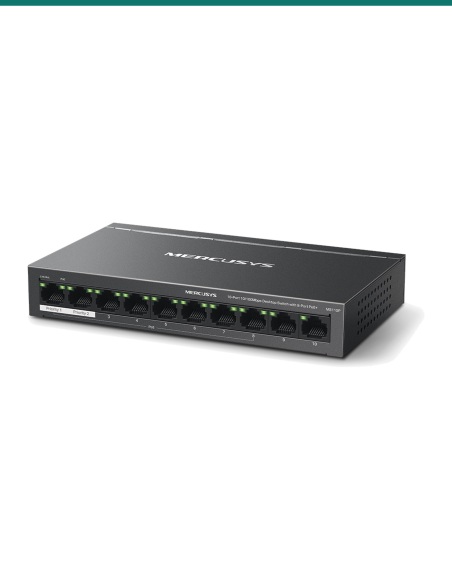
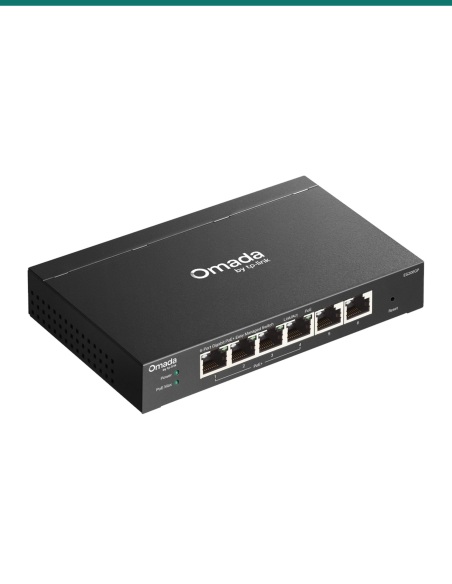
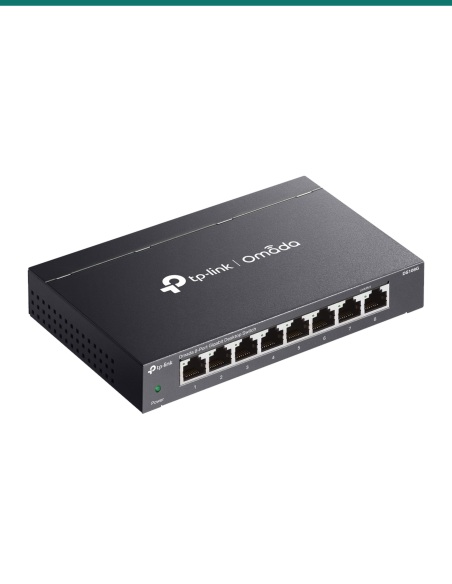
The DS110GMP is a fanless, plug-and-play gigabit switch that powers up to eight PoE cameras, access points or IP phones, with two gigabit uplinks and simple mode switches instead of software.
In one sentence: the TP-Link Omada DS110GMP is a fanless 10-port unmanaged gigabit desktop switch with 8 IEEE 802.3af/at PoE+ ports at up to 30 W each, a 123 W total PoE budget, one gigabit RJ45 uplink and one gigabit combo SFP/RJ45 uplink.
Switch and power adapter only. Cables and powered devices are separate.
The DS110GMP runs from an external 53.5 V DC power adapter, which TP-Link lists in the box. There is no rack kit: it sits on a desk or hangs on a wall.
In the box- DS110GMP switch
- Power adapter (53.5 V DC, 2.43 A)
- Installation guide
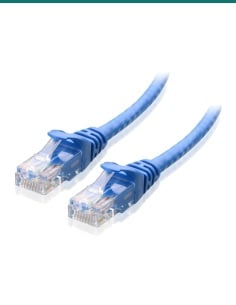
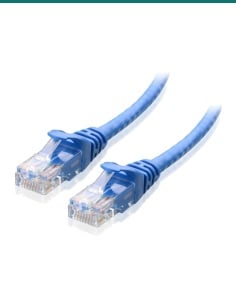
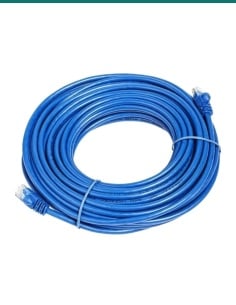
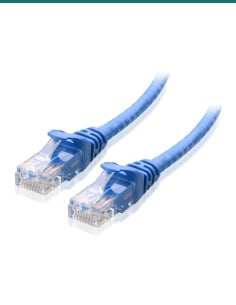
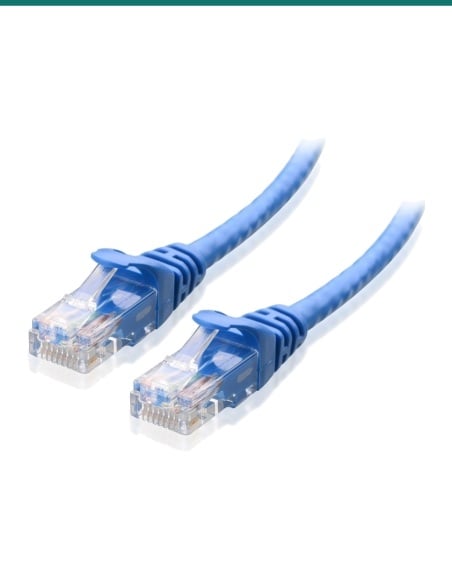
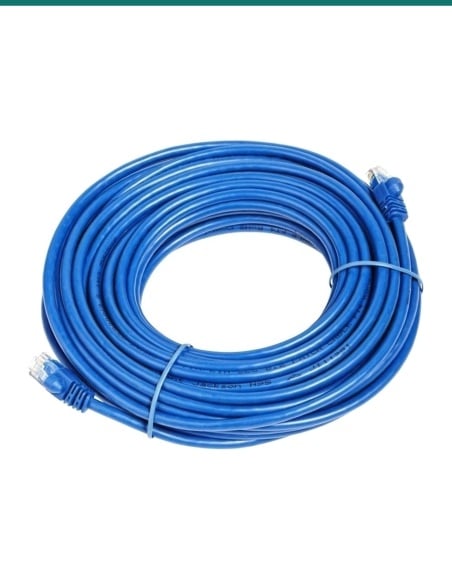
You also need- Cat5e or Cat6 patch leads and cable runs
- An SFP module if you use the fibre side of the combo uplink
- A router, recorder or larger switch to uplink to
- Two screws and wall plugs if you wall-mount it
Power and connect a small site from one quiet box.
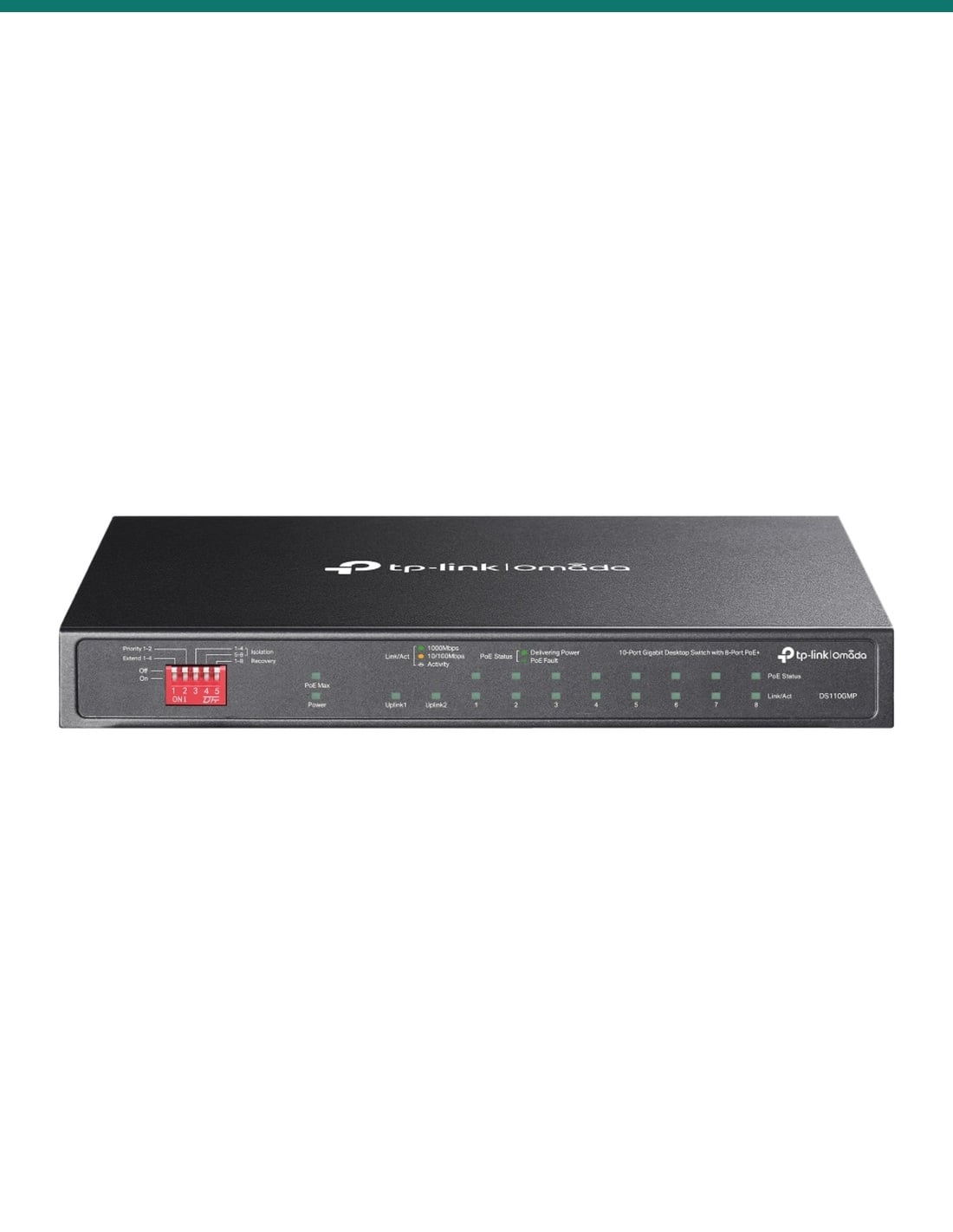
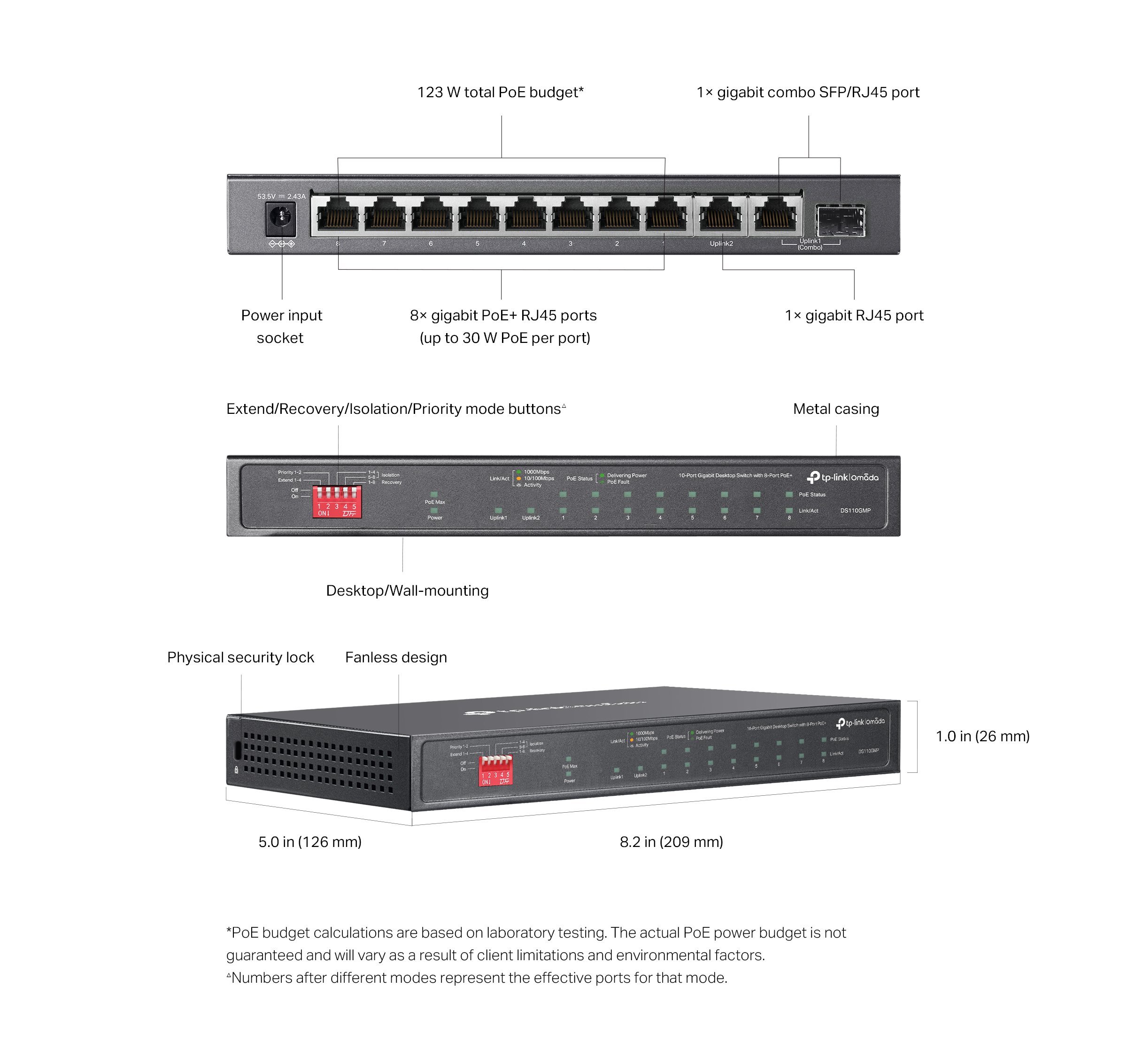
Ports 1 to 8 each supply up to 30 W of 802.3af/at PoE+, with 123 W shared across them. That runs VIGI cameras, Omada access points and IP phones without separate power packs. There is nothing to configure: five small switches on the front turn on Extend, Priority, Isolation and PoE Auto Recovery.
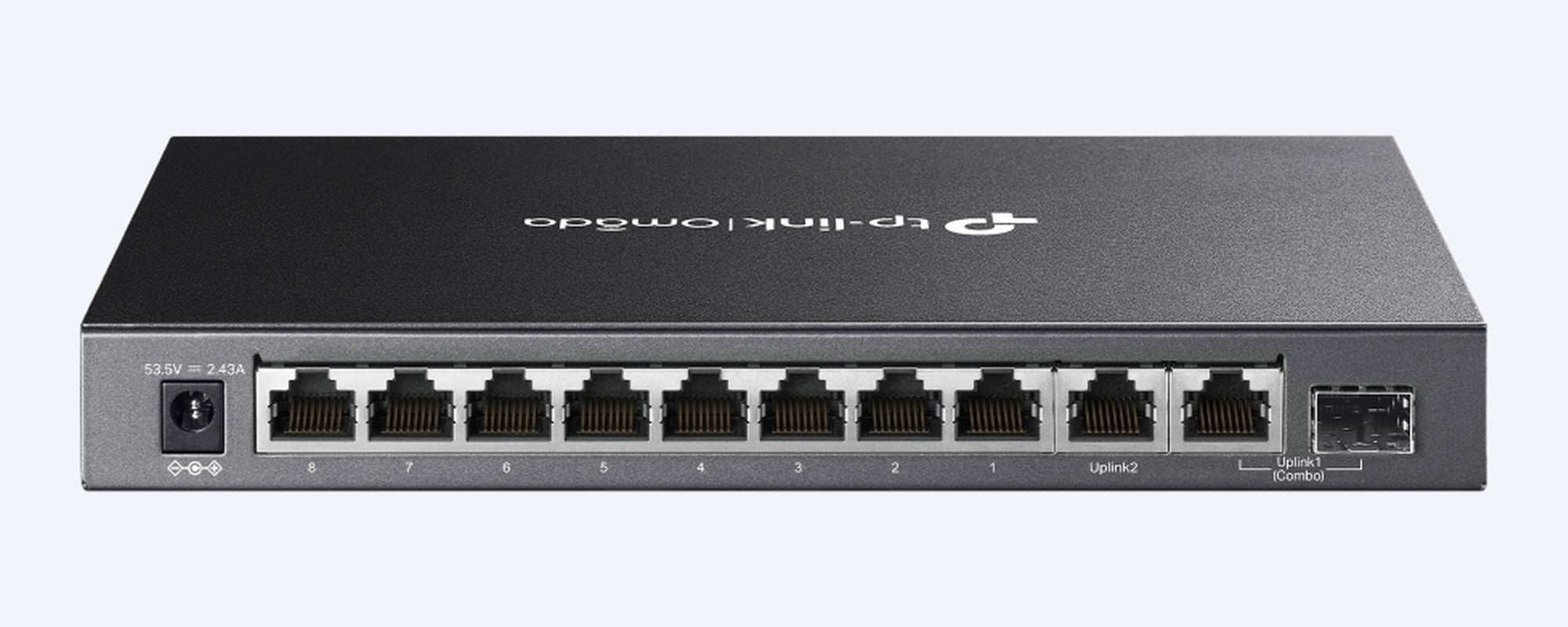
Ports
8 PoE+ ports and two uplinks.
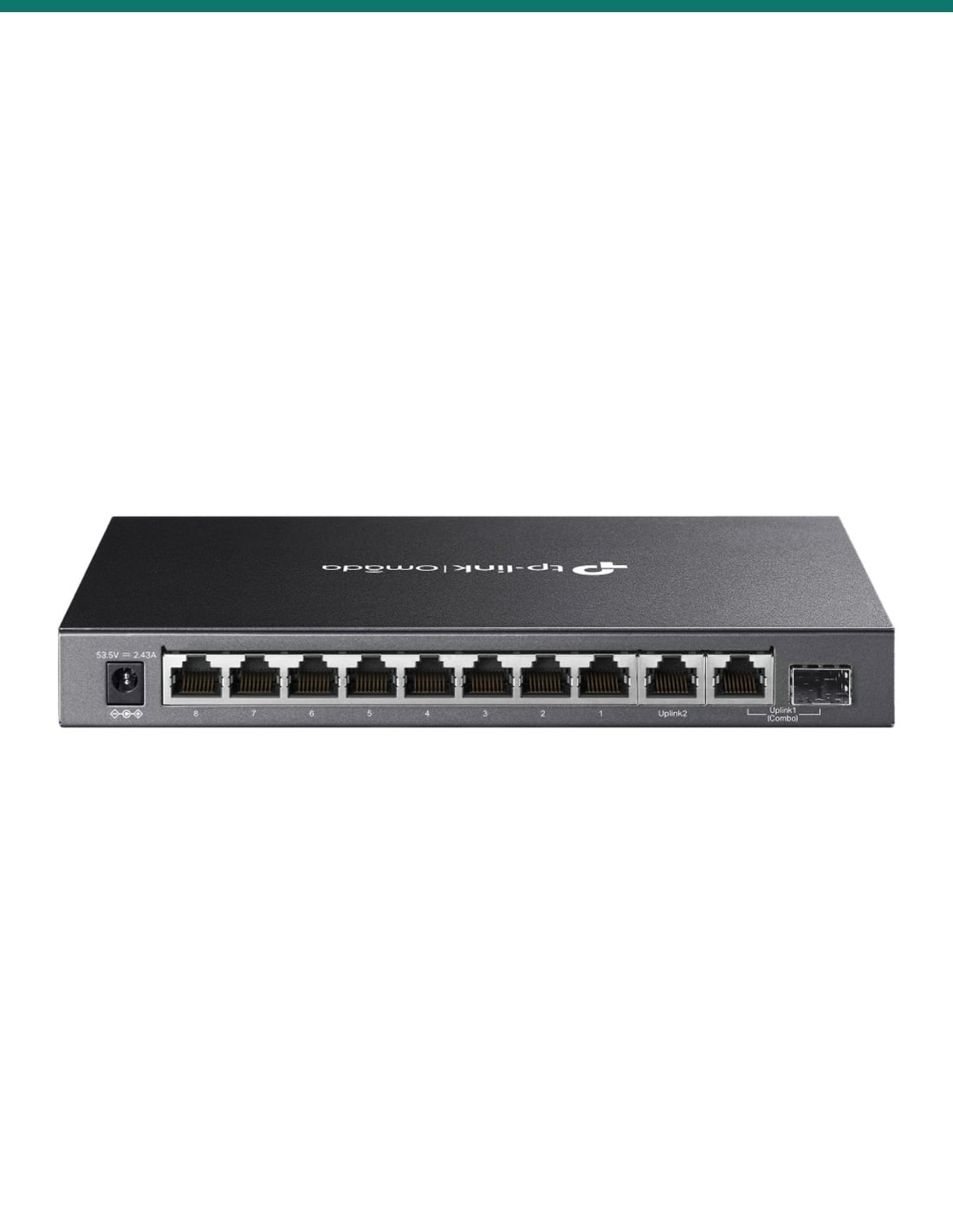
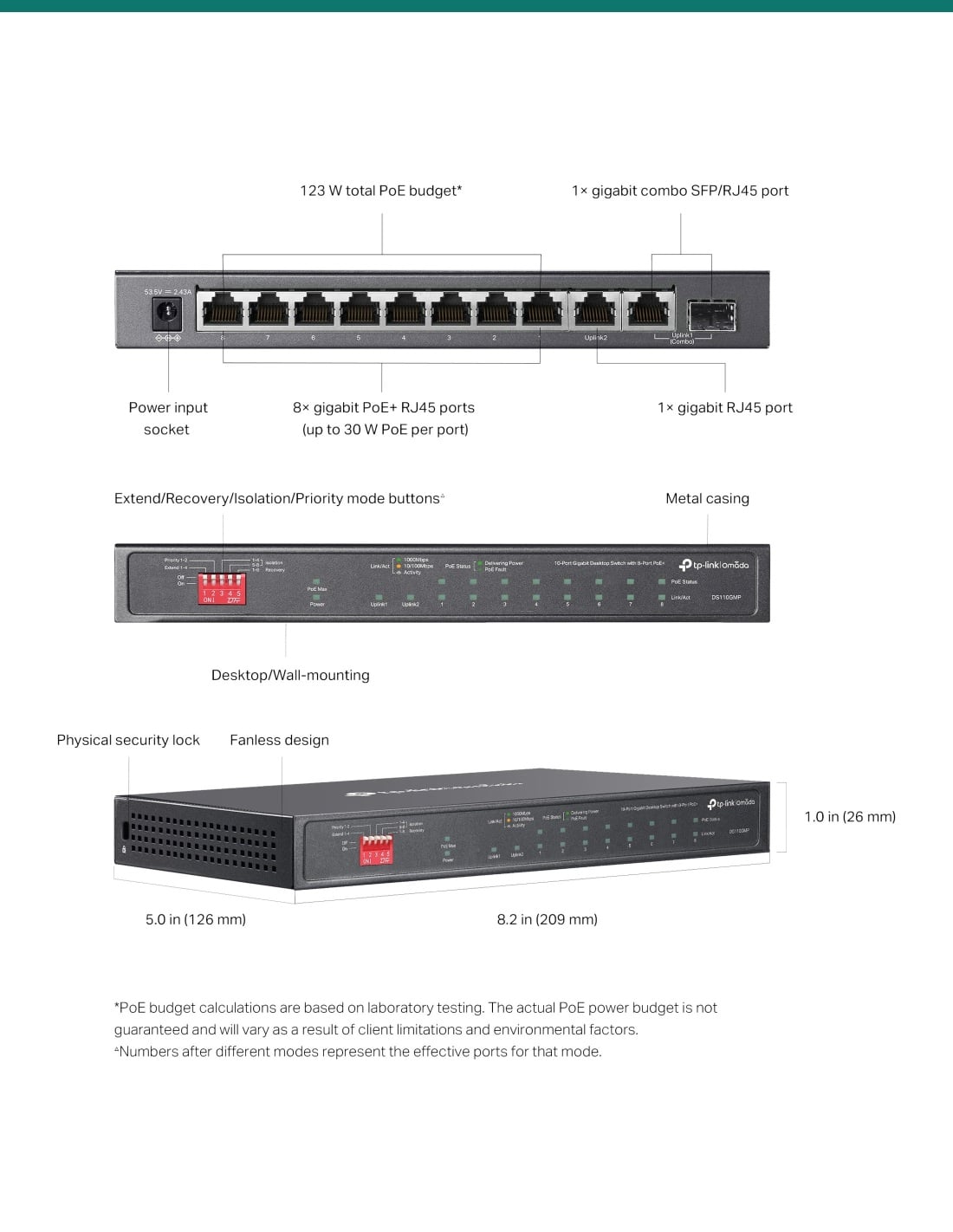
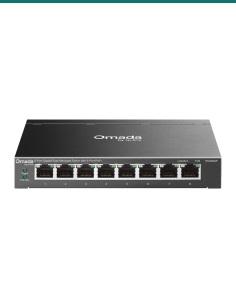
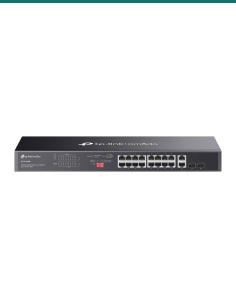
From the left: the DC power socket, PoE+ ports 8 to 1, the Uplink2 gigabit RJ45 port and the Uplink1 combo port, which is either a gigabit RJ45 or an SFP slot. Use one side of the combo port at a time.
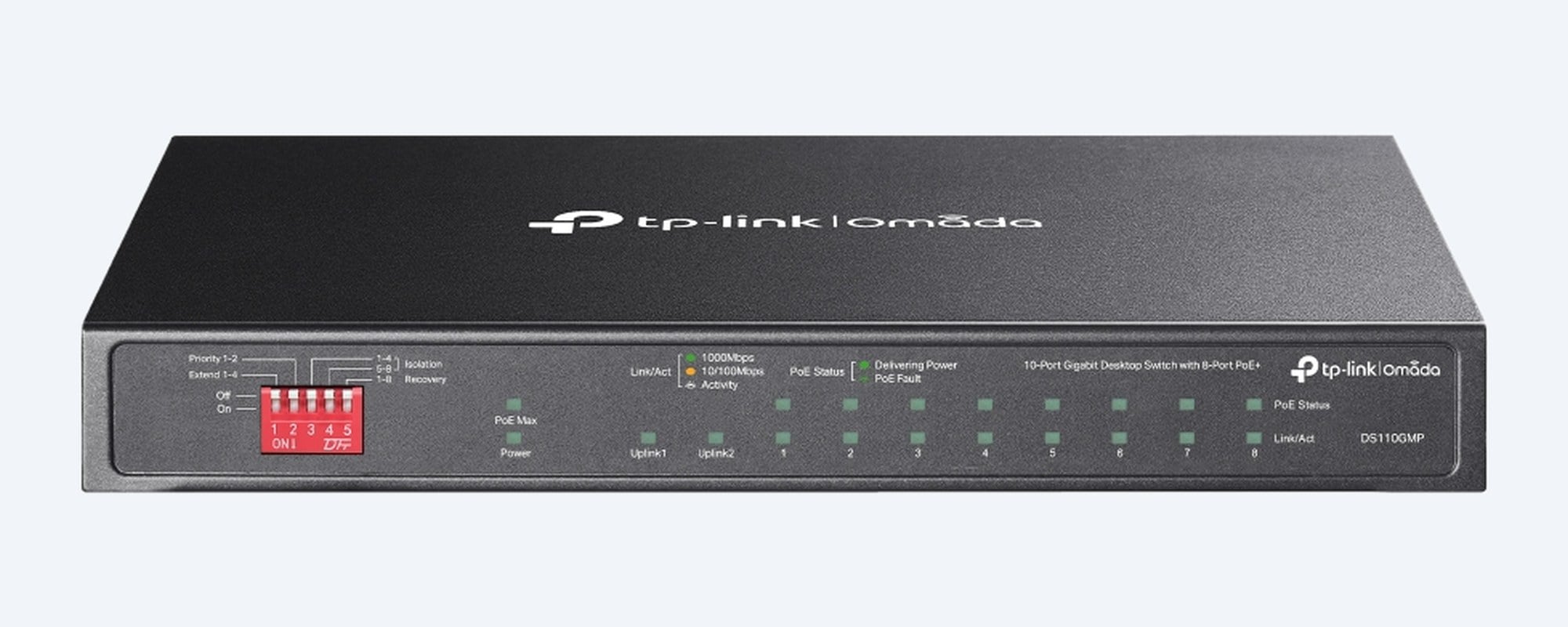
Lights and switches
Mode switches instead of software.
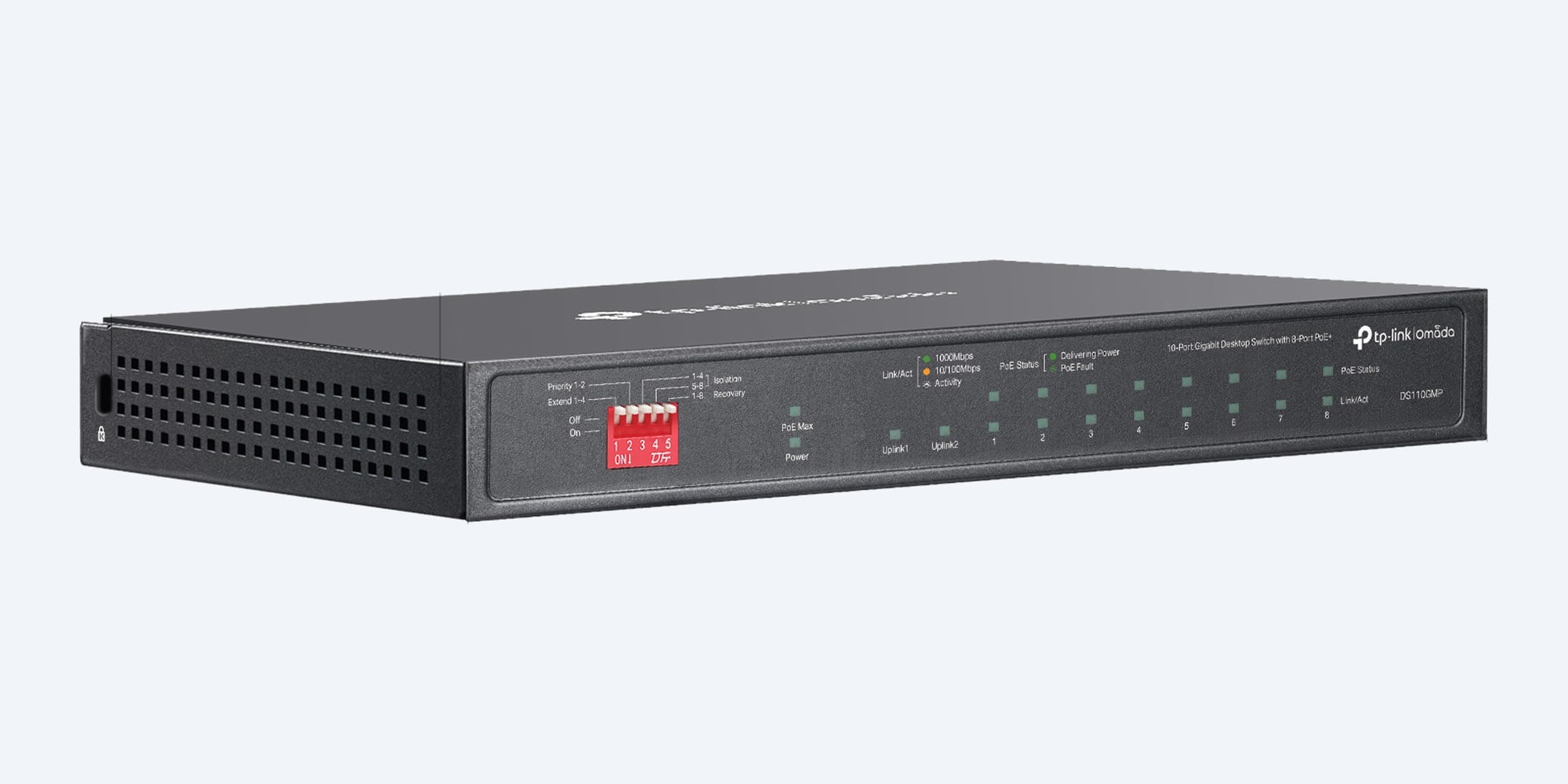
The red switches turn on Priority (ports 1 and 2), Extend (ports 1 to 4), Isolation and PoE Auto Recovery. Each port has a Link/Act and a PoE Status light, next to the Power and PoE Max lights.
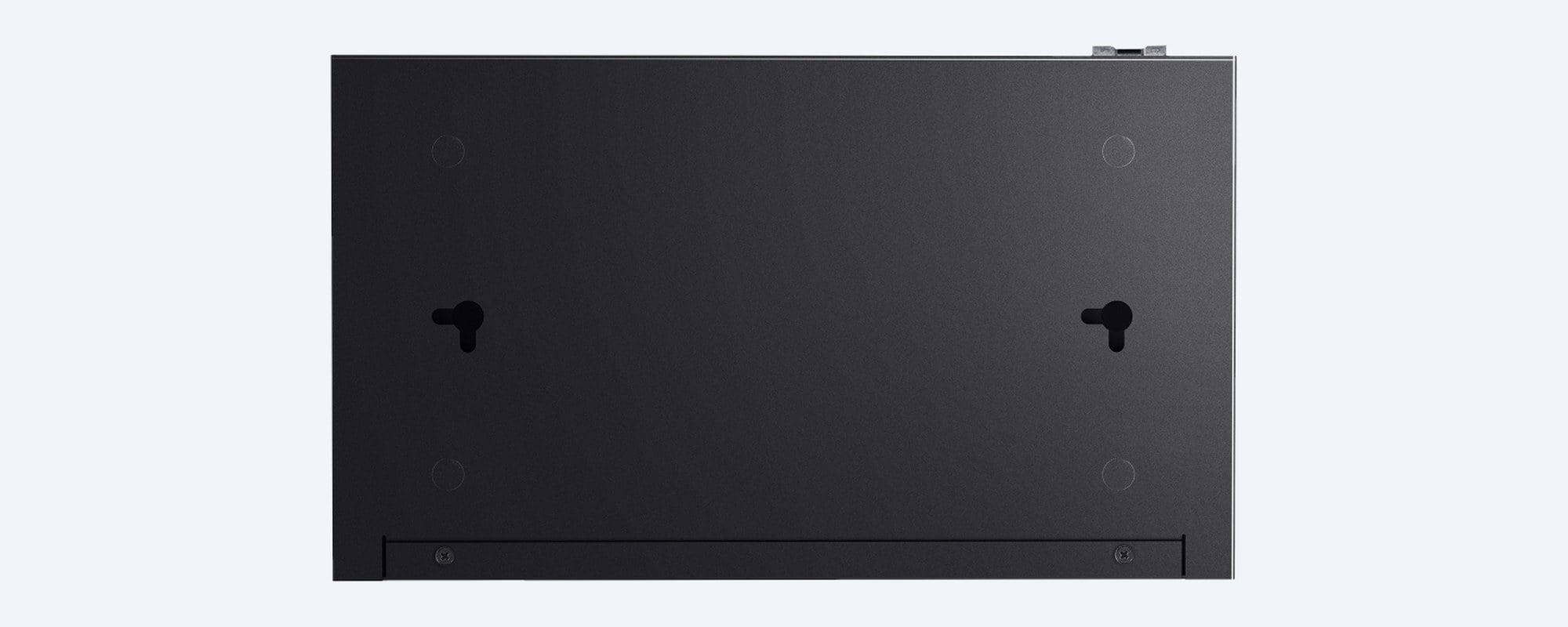
Mounting
Desk or wall, metal case, no fan.
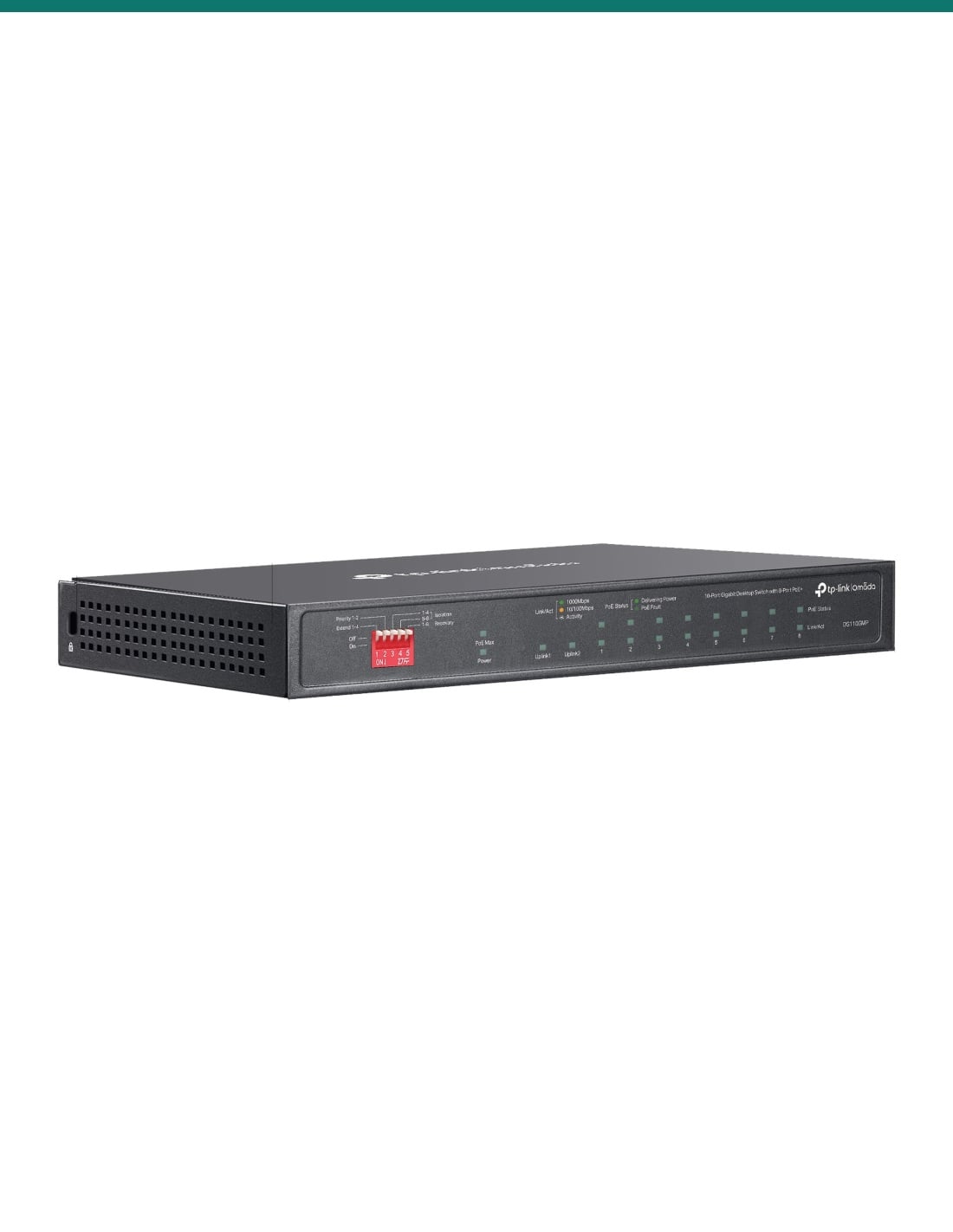
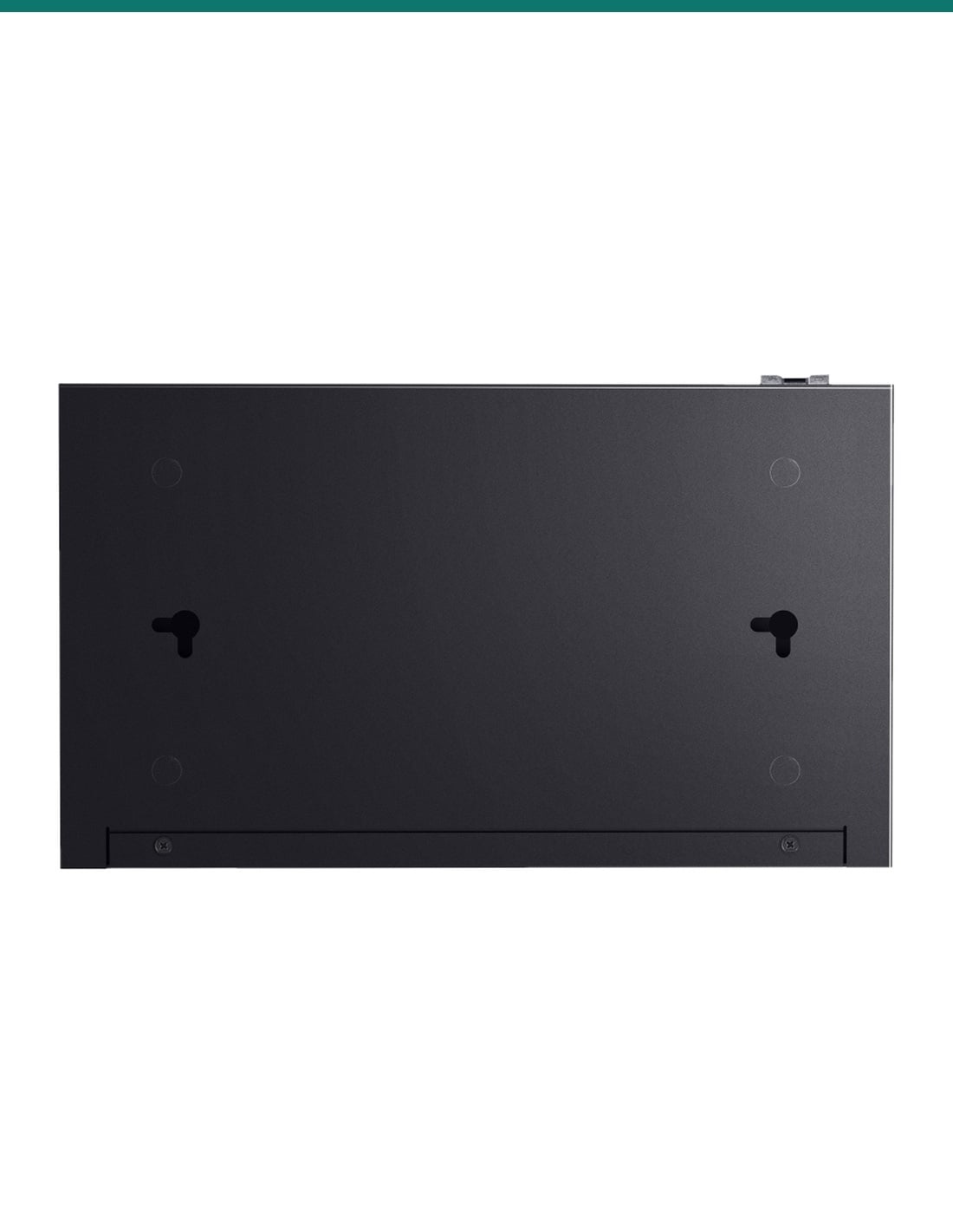
The steel case is 209 × 126 × 26 mm and fanless, so it is silent. Two keyhole slots on the underside let it hang on a wall, and a security lock slot on the side takes a cable lock.
How it goes in
From box to powered cameras.
01
Place it
Stand it on a desk or shelf, or hang it on two screws using the keyhole slots. Leave air around it and keep it between 0 °C and 40 °C.
02
Set the modes
Before you power up, flick the switches you need: Extend for long camera runs on ports 1 to 4, Priority for ports 1 and 2, Isolation, and PoE Auto Recovery.
03
Connect the network
Run Uplink2 or the Uplink1 combo port to your router or recorder, then plug cameras, access points and phones into PoE+ ports 1 to 8.
04
Power it and check
Plug in the power adapter. Check each powered device lights its PoE Status light, and that the total draw of your devices stays inside 123 W.
At a glance
DS110GMP
Show specs
Ports
9 × 10/100/1000 Mbps RJ45, 1 × gigabit combo SFP/RJ45 (Uplink1)
PoE ports
Ports 1–8, IEEE 802.3af/at, up to 30 W per port
PoE pins
Power + on pins 3 and 6, power − on pins 1 and 2
Extend Mode
Ports 1–4, up to 250 m at 10 Mbps
Isolation Mode
Ports 1–4 / 5–8
PoE Auto Recovery
Yes; the datasheet lists ports 1–4, TP-Link's AU page lists ports 1–8 (confirm with us)
Switching capacity
20 Gbps, store and forward
MAC address table
4K, auto-learning and auto-aging
Standards
IEEE 802.3i, 802.3u, 802.3x, 802.3af, 802.3at, 802.3z; auto-negotiation and auto MDI/MDIX
Management
Unmanaged, plug and play; not managed by Omada SDN
Lights
Power, PoE Max, Link/Act and PoE Status per port
Power
External adapter, 53.5 V DC 2.43 A
Power use
7.93 W with nothing connected; 141.40 W with 123 W of PoE load
Operating range
0 °C to 40 °C; 10% to 90% RH non-condensing
Warranty
3 years, TP-Link Australia
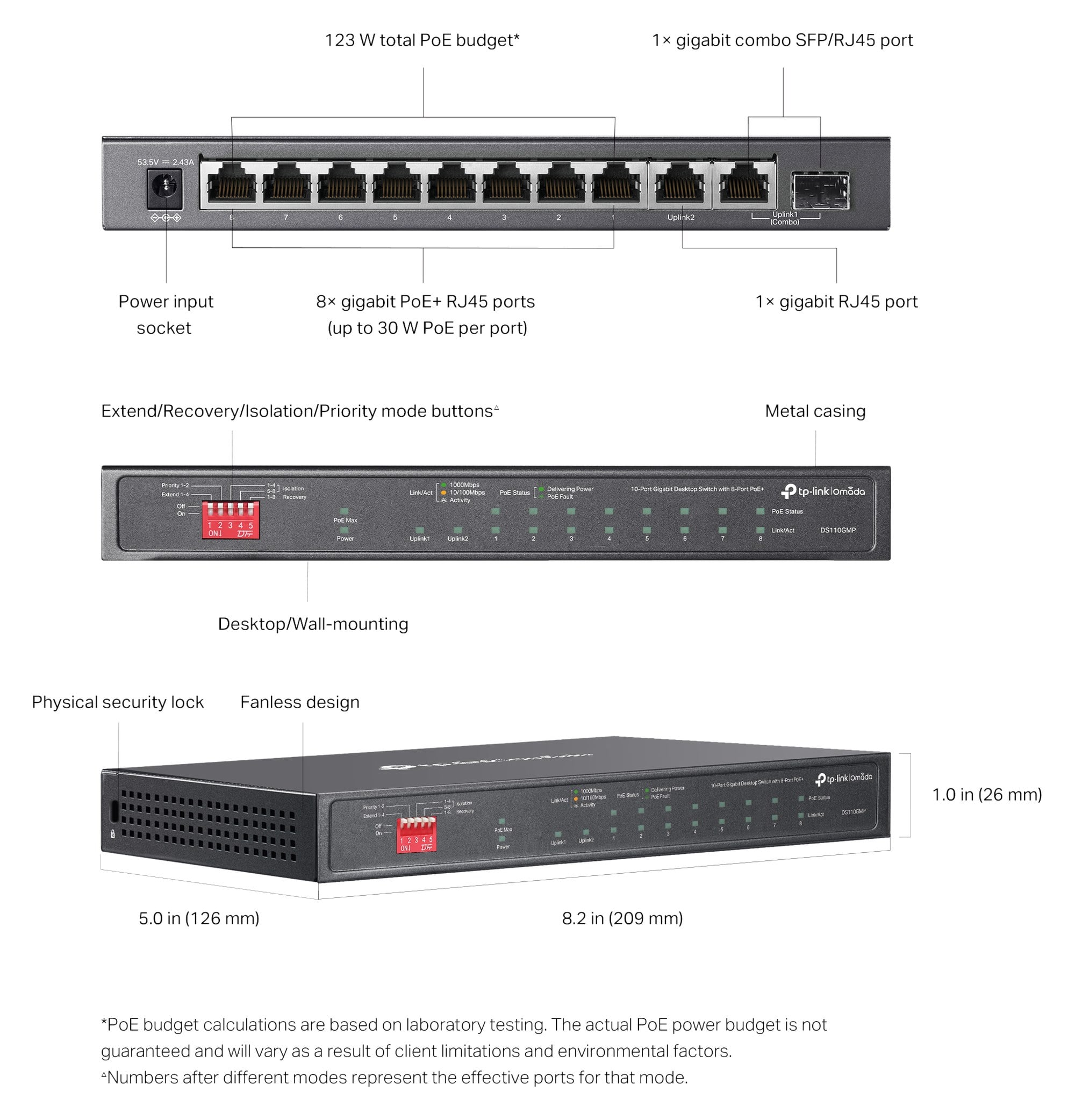
TP-Link's DS110GMP drawing: ports, mode switches and the 209 × 126 × 26 mm case.
Pair it with
What this switch works with
Cameras
TP-Link VIGI PoE cameras
802.3af/at cameras run straight off ports 1 to 8. Use Extend on ports 1 to 4 for runs beyond 100 m.
Wi-Fi
Omada access points
PoE+ ceiling access points up to 30 W each. Remember the 123 W total across all eight ports.
Uplink
SFP module
For a fibre uplink on the Uplink1 combo port. Ask us which gigabit module suits your link.
Cabling
Cat5e or Cat6 cable
One run per device, up to 100 m in normal mode or 250 m on ports 1 to 4 in Extend mode.
Where it is used
Where an 8-port PoE+ desktop switch fits.
Small CCTV systems
Up to eight PoE cameras feeding a recorder, with Priority keeping video smooth on ports 1 and 2.
Home offices
A silent, fanless switch for access points, phones and a camera or two.
Shops and cafes
Cameras, a ceiling access point and the point-of-sale on one quiet box.
Long camera runs
Extend mode reaches 250 m on ports 1 to 4 for gates, sheds and car parks.
VoIP phones
Power desk phones over the network cable, no plug packs at each desk.
Guest and tenant networks
Isolation stops connected devices talking to each other, only to the uplink.
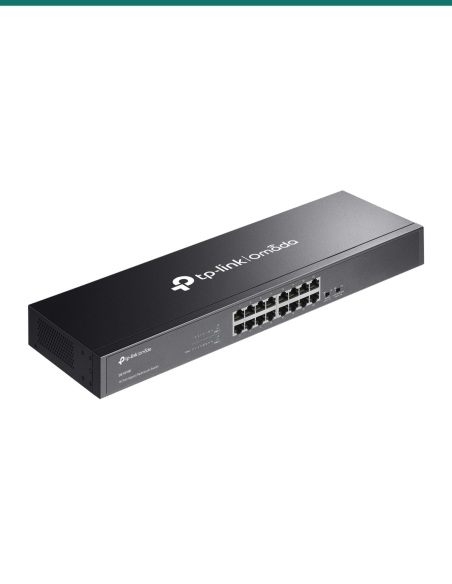
DS110GMP or DS1018GMP
| DS110GMP (this switch) | DS1018GMP |
|---|
| PoE+ ports | 8 | 16 |
| Other ports | 1 gigabit RJ45 + 1 gigabit combo SFP/RJ45 | 2 gigabit combo SFP/RJ45 |
| PoE budget | 123 W | 250 W |
| Switching capacity | 20 Gbps | 36 Gbps |
| Priority Mode | Ports 1–2 | Ports 1–4 |
| Power | External 53.5 V DC adapter | Built in, 100–240 V AC |
| Cooling | Fanless | 2 fans |
| Size and mounting | 209 × 126 × 26 mm, desk or wall | 440 × 180 × 44 mm, desk or 19-inch rack |
From TP-Link's DS110GMP and DS1018GMP datasheets (Omada unmanaged switches).
Common questions
How much PoE power does the DS110GMP have?
123 W in total, shared across ports 1 to 8, with up to 30 W on any one port (IEEE 802.3af/at PoE+).
How many ports supply PoE?
Eight. Ports 1 to 8 are PoE+. Uplink2 and the Uplink1 combo port carry data only.
Is it managed?
No. It is plug and play with no web page or VLANs. The modes are set with switches on the front, and it is not managed by Omada SDN.
What does Extend mode do?
It lets ports 1 to 4 run data and power up to 250 m. The speed on those ports drops to 10 Mbps, which suits most cameras.
What does Priority mode do?
Traffic on ports 1 and 2 goes ahead of the other ports, so plug your most important cameras or the recorder there.
What does Isolation mode do?
It stops the selected ports talking to each other so they only reach the uplinks. TP-Link lists it for ports 1–4 and 5–8.
What is PoE Auto Recovery?
The switch watches powered devices and power-cycles one that stops responding, such as a frozen camera.
Can I use a fibre uplink?
Yes. Uplink1 is a combo port: use either its gigabit RJ45 or its SFP slot with a gigabit SFP module, not both.
Is the power supply included?
Yes. TP-Link lists a power adapter in the box. It is a 53.5 V DC, 2.43 A adapter that plugs into the socket next to port 8.
Is it noisy?
No. The DS110GMP is fanless, so it is silent on a desk or in an office.
Can it be wall-mounted or racked?
It sits on a desk or hangs on a wall from the two keyhole slots underneath. It does not come with a rack kit.
Who can install the cable?
Concealed data cabling to cameras, access points and outlets is customer cabling under AS/CA S009 and needs an ACMA-registered cabler.
Supported by InFront Technologies.
Need help sizing the PoE budget or picking cameras and access points? Call 1300 736 970 or email [email protected]. The datasheet is on the Attachments tab. 3-year TP-Link Australia warranty: contact us first and we will look after the claim.
Installation and safety
Mains powered. The switch runs from its plug-in power adapter. A new power point needs a licensed electrician.
Cabling. Concealed data cabling is customer cabling under AS/CA S009 and needs an ACMA-registered cabler. Outdoor runs need outdoor-rated cable.
Ventilation. It is fanless, so keep the vents clear and keep it within 0 °C to 40 °C.
What it does not do. No VLANs, web interface or Omada SDN management, no 802.3bt PoE++, no 10G uplinks and no rack mounting.
Figures. From TP-Link's DS110GMP datasheet (V1); box contents and power adapter rating from TP-Link's Australian product page.